Layer
A layer is a special container that always fills its parent, usually the page. Use layers to organize a page into stacked planes, such as a background, zones, and widgets, that you can show, hide, lock, or scale separately.
Layers differ from groups in these ways:
- A layer is always 100% of the width and height of its parent, and uses absolute layout. You can't move, resize, rotate, or style it, so the Position and Size, Transform, Fill and Stroke, Corners, Effects, Callout, Layout, Scaling, and Repeater sections are not shown in the Property Inspector.
- A new layer has its clickThrough property (in the Advanced Properties panel) enabled, so empty areas of the layer don't block mouse events for the layers below it.
- A layer can't be inserted into another layer. If a layer is selected when you insert a layer, the new layer is added to the layer's parent.
- When you insert a component while a layer, or a component inside a layer, is selected, the component is added to that layer.
- Components can't be dragged from one layer to a sibling layer.
- In the Outline, layers are shown with a layers icon instead of a preview.
The File > New File from Template > Floor Plan and Equipment View templates create pages that are made of layers.
For a detailed reference of properties that affect layers, see Layer Properties.
Create a Layer
To create a layer:
- In the Outline or Document window, right-click the Stage and select Insert > Components > Layer.
- Optionally, rename the layer in the Outline, for example
BackgroundorWidgets. - Select the layer, and insert or paste components. They are added to the selected layer.
The order of layers in the Outline determines which layer is drawn on top.
Layer Properties
These properties affect the layer component.
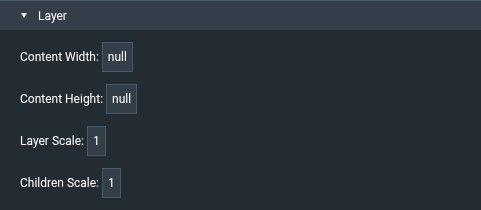
For a guide to using layers, see Layer.
A layer always fills its parent, so the Position and Size, Transform, Fill and Stroke, Corners, Effects, Callout, Layout, Scaling, and Repeater sections are not shown for layers. The general properties, such as visibility, still apply. See Common Properties.