Table of Contents
Axis Properties
These properties affect horizontal and vertical axes for charts. The Axis Type property lets you switch an axis between the Linear, Log, Category, and Datetime types; the properties shown depend on the selected type.
For radar charts, the radial (value) axis and the angular axis show a reduced set of these properties. See Radar Chart Axes.
For a guide to using charts, see Designing Charts.
Axes can also be affected using Effects properties.
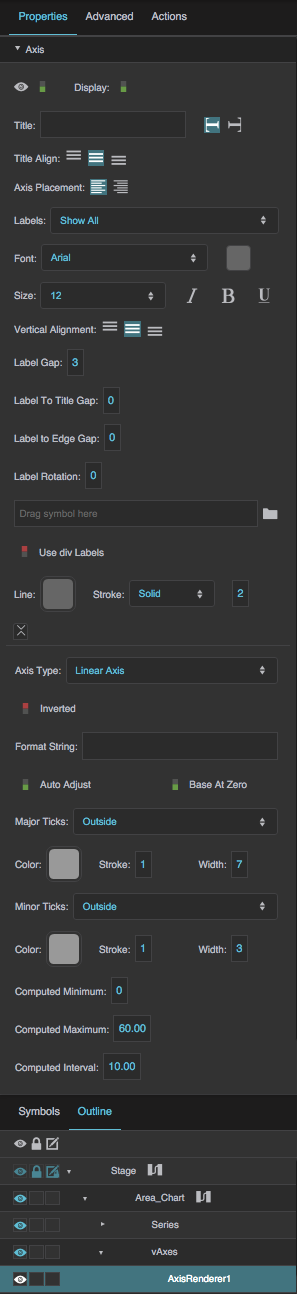
Axis properties in the Property Inspector
Video Tutorial: Auto Adjust Property
More video tutorials are here.
Visible
Visible
Visible
Defines whether this element is visible. Regardless of value, the element affects layout and is stored in the user's browser memory. Because the element is stored in memory, performance might be affected.
TRUE
This element is visible.
FALSE
This element is not visible, but it still affects layout and is stored in browser memory.
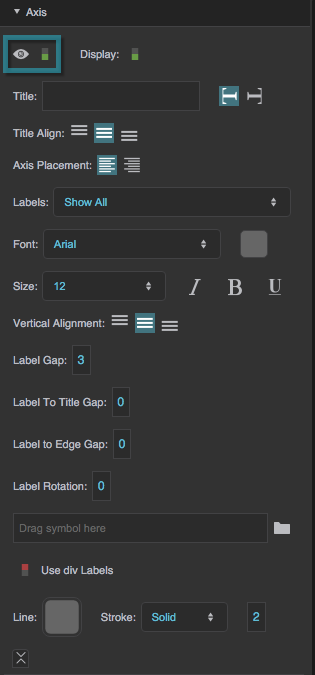
The Visible property
Display
Display
Display
Defines whether this element is displayed. If it is not displayed, the component does not affect layout. However, regardless of value, the element is stored in the user's browser memory. Performance might be affected as a result.
TRUE
This element is displayed, and it affects layout.
FALSE
This element is not displayed, and it does not affect layout. The element remains stored in browser memory.
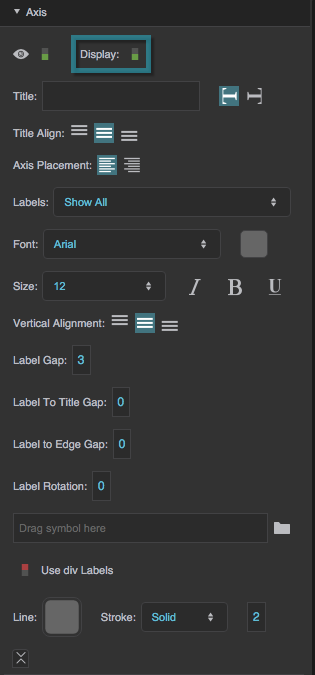
The Display property
Title
Title
Title
Defines the title text for this axis. This text appears as an axis title label.
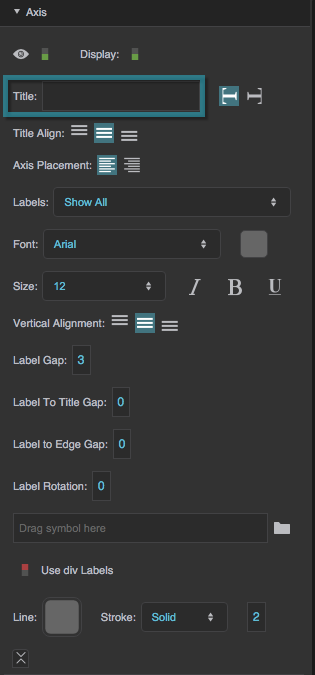
The Title property
Vertical Axis Title Orientation
Vertical Axis Title Orientation
Vertical Axis Title Orientation
Controls axis title orientation for a vertical axis. Orientation can be either Vertical or Flipped Vertical. You might want to select Vertical if the axis is on the left of the chart, and Flipped Vertical if the axis is on the right.
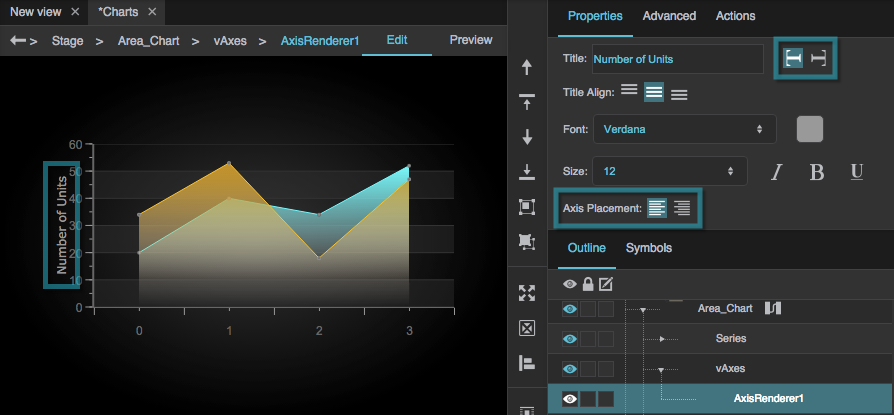
The axis is placed on the left, and the Axis Title Orientation is set to Vertical.
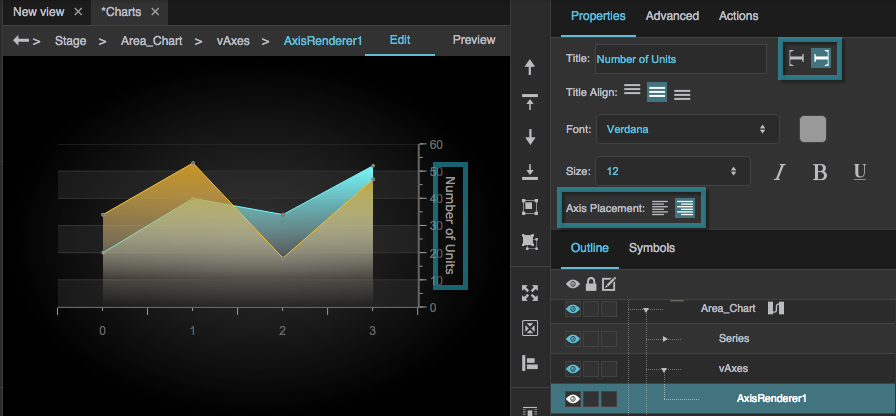
Changing the Axis Placement moves the axis to the right side, and changing the Axis Title Orientation to Flipped Vertical changes the orientation of the text.

The Vertical Axis Title Orientation property
Title Alignment
Title Alignment
Title Align
For a vertical axis, specifies whether the axis title is aligned to the top, bottom, or center of the axis. For a horizontal axis, specifies whether the axis title is aligned to the left, right, or center of the axis.
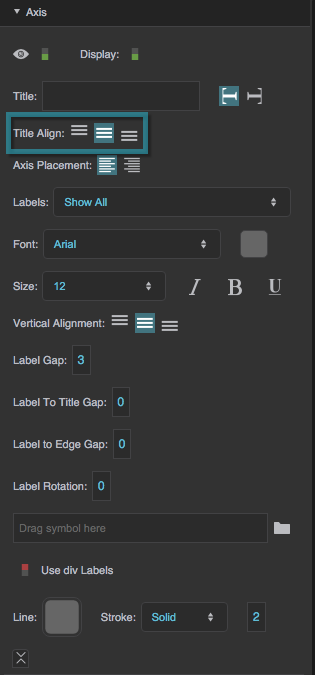
The Title Alignment property
Title Font
Title Font
Font
Defines the font used for the axis title. (The Labels row has its own Font, color, size, Italic, Bold, and Underline settings that apply to the axis labels.) To add a font to this project and use it for this property, see Text Component Properties.
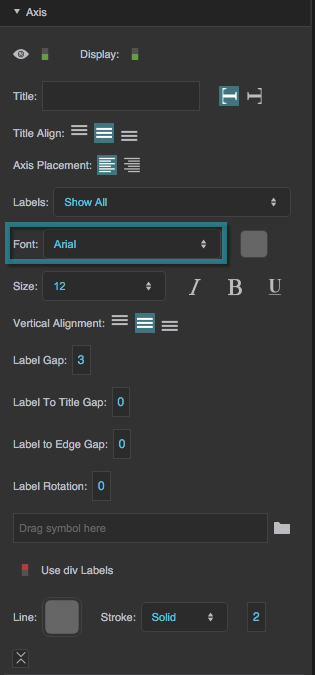
The Font property
Title Font Color
Title Font Color
Font Color
Defines the font color used for the axis title or the axis labels.
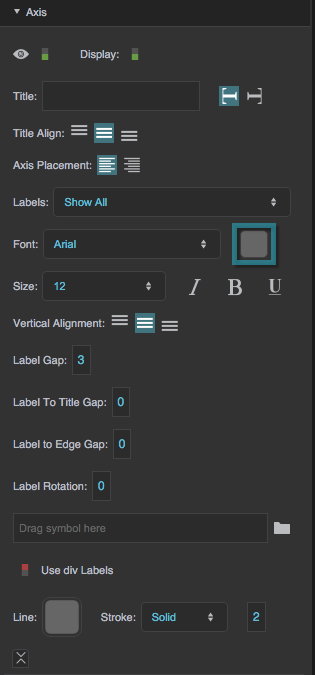
The Font Color property
Title Font Size
Title Font Size
Font Size
Defines the font size used for the axis title or the axis labels.
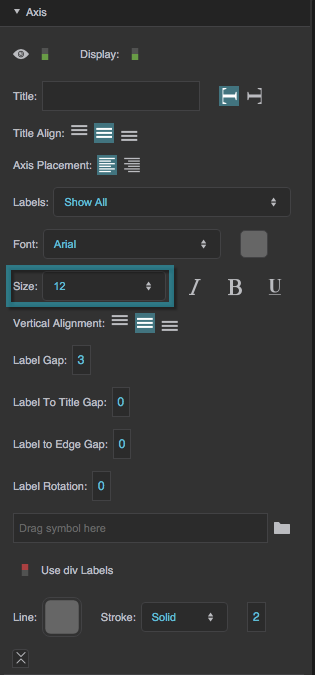
The Font Size property
Italic
Italic
Italic
Defines whether the axis title or labels are italicized.
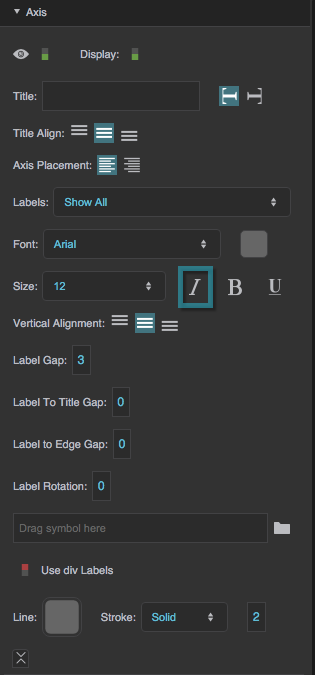
The Italic property
Bold
Bold
Bold
Defines whether the axis title or labels are bold.
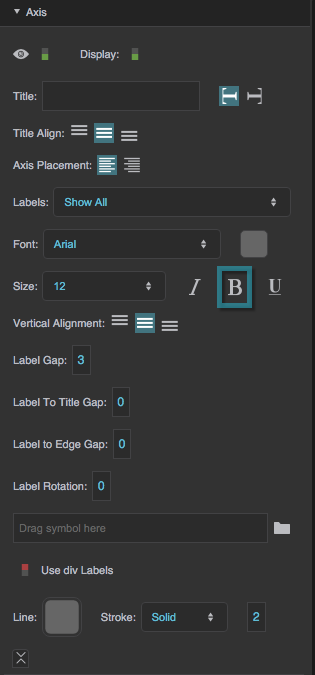
The Bold property
Underline
Underline
Underline
Defines whether the axis title or labels are underlined.
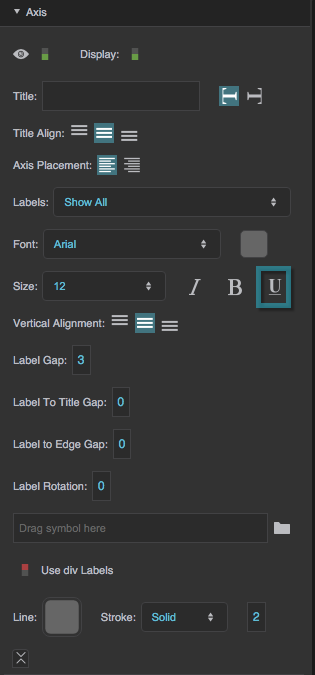
The Underline property
Axis Placement
Axis Placement
Axis Placement
For a vertical axis, specifies whether the axis is positioned on the left or the right of the chart. For a horizontal axis, specifies whether the axis is positioned on the top or the bottom of the chart.
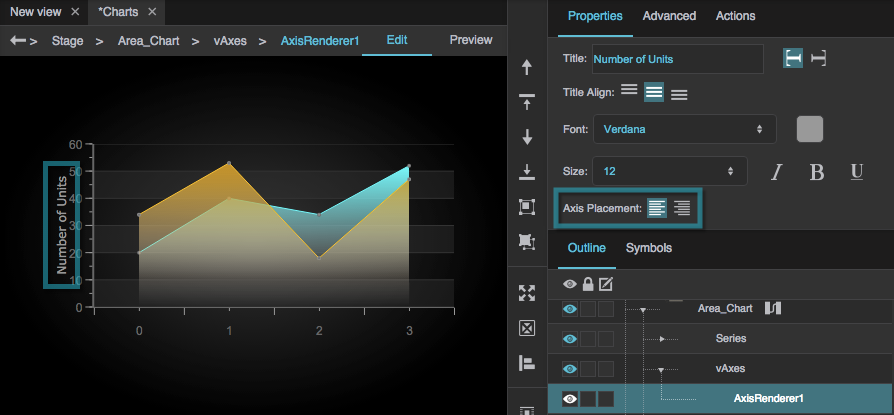
The axis is placed on the left.
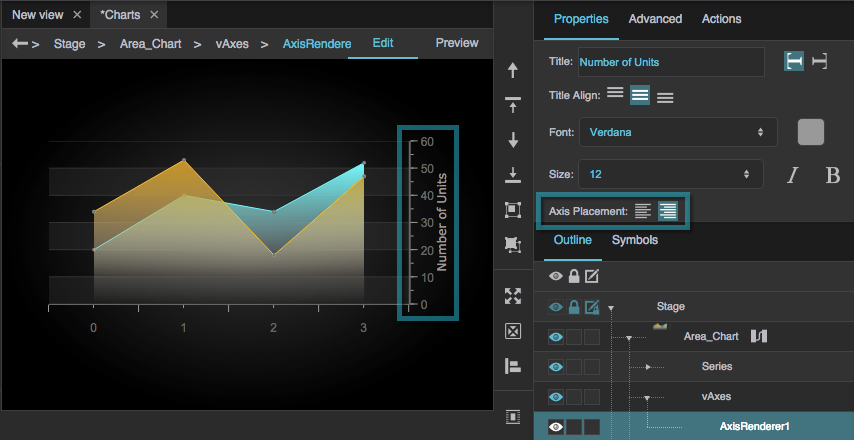
The axis is placed on the right.
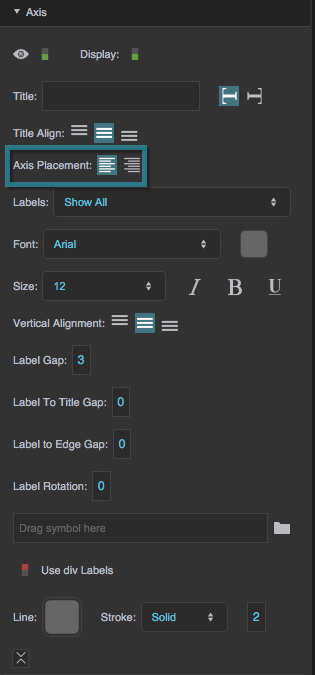
The Axis Placement property
Labels
Labels
Labels
Specifies how many labels appear along the axis.
None
No labels appear.
Min Max
Only the minimum and maximum labels appear.
Auto
The number of labels depends on the amount of available space.
Show All
A label appears for every major tick.
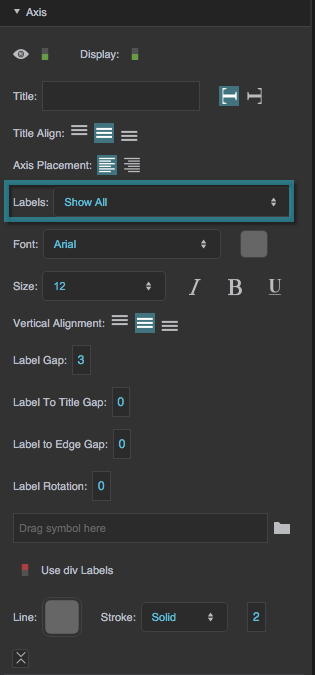
The Labels property
Label Vertical/Horizontal Alignment
Label Vertical/Horizontal Alignment
Horiz Align / Vertical Alignment
For a vertical axis, determines whether the labels are aligned vertically to the top, middle, or bottom of the major ticks. For a horizontal axis, determines whether the labels are aligned to the left, center, or right of the major ticks.
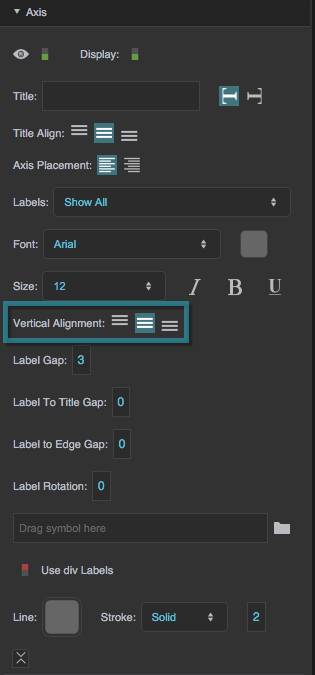
The Label Vertical Alignment property
Label Gap
Label Gap
Label Gap
Defines the distance, in pixels, between the major tick marks and the labels for this axis.
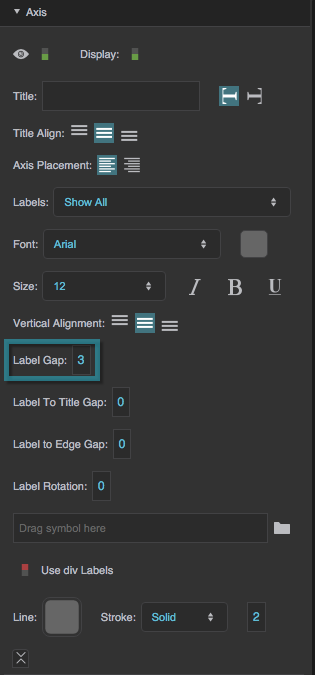
The Label Gap property
Label to Title Gap
Label to Title Gap
Label to Title Gap
Defines the distance, in pixels, between the axis title and the axis labels.
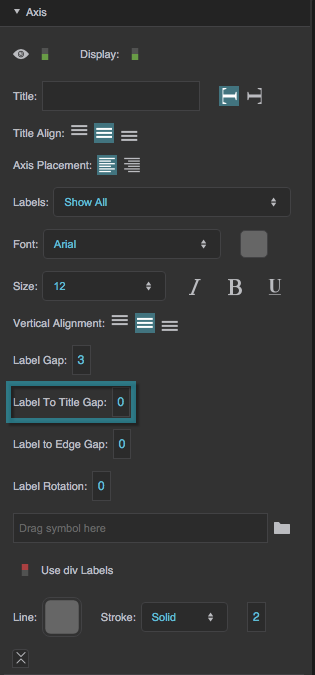
The Label to Title Gap property
Label to Edge Gap
Label to Edge Gap
Label to Edge Gap
Defines the distance, in pixels, between the chart container and the labels for this axis.
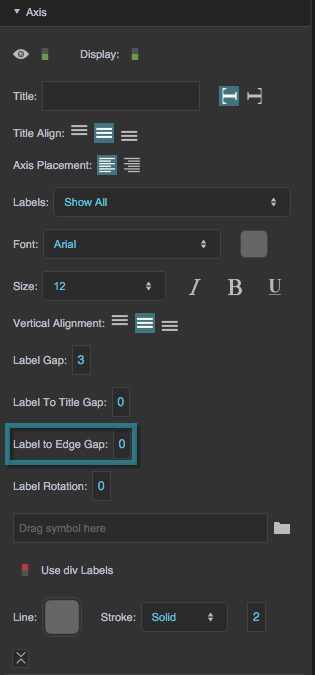
The Label to Edge Gap property
Label Rotation
Label Rotation
Label Rotation
Defines the angle of rotation for the labels on this axis. Valid values are between −180 and 90.
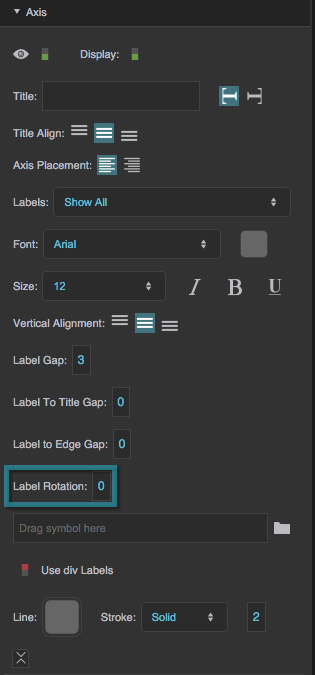
The Label Rotation property
Label Type
Label Type
Label Type
Specifies whether the axis labels are Standard text labels or Custom labels rendered with a symbol. Default is Standard. When set to Custom, the Custom Label Symbol property is shown.
Label Symbol
Label Symbol
Custom Label Symbol
Specifies the symbol to use for a custom label renderer. Used when Label Type is Custom.
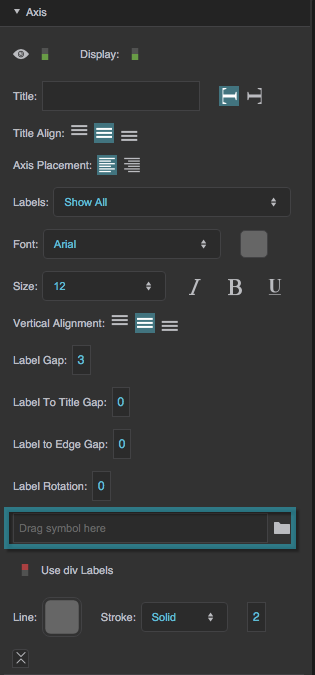
The Label Symbol property
Use div Labels
Use div Labels
Use div Labels
Specifies whether the labels along an axis are coded as <div> elements, thereby allowing multiline text and HTML tags. By default, labels are rendered as SVG text elements, which are faster but support fewer formatting options.
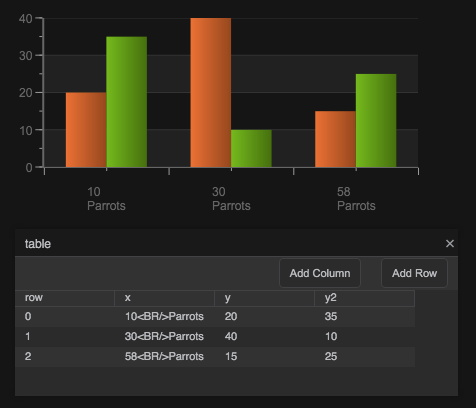
An example of HTML content used as a div label
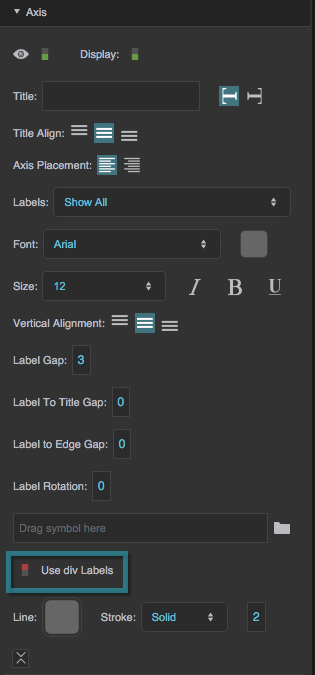
The Use //div Labels property//
Axis Stroke Color
Axis Stroke Color
Line (Axis Stroke Color)
Defines the color of the line that represents this axis.
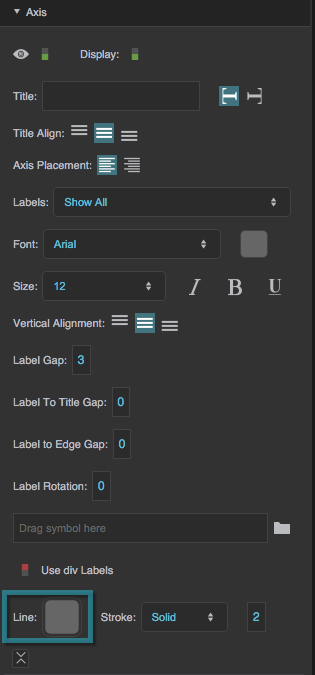
The Axis Stroke Color property
Axis Stroke Style
Axis Stroke Style
Axis Stroke Style
Defines the stroke style of the line that represents this axis.
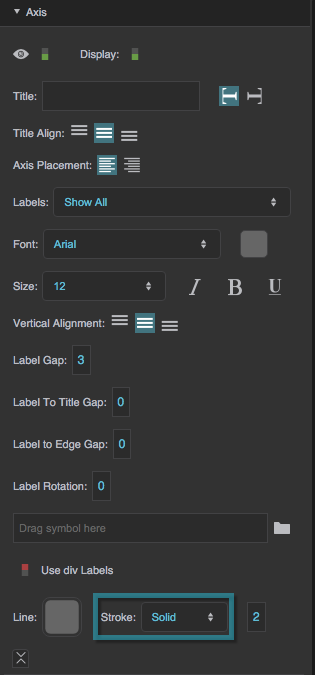
The Axis Stroke Style property
Axis Stroke Weight
Axis Stroke Weight
Axis Stroke Weight
Defines the stroke weight of the line that represents this axis.
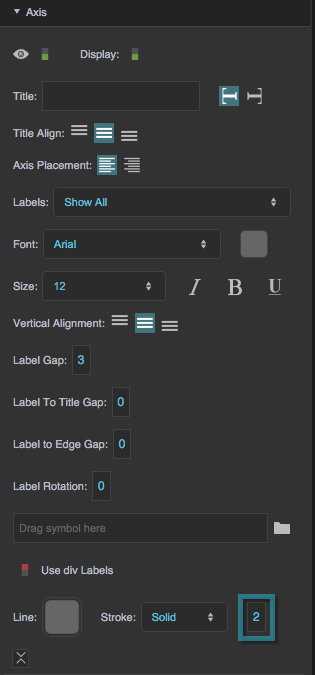
The Axis Stroke Weight property
Axis Type
Axis Type
Axis Type
Defines the scale type of an axis. Changing this property replaces the axis with a new axis of the selected type.
Linear Axis
The axis represents linearly increasing values.
Log Axis
The axis represents logarithmically increasing values. You might want a logarithmic axis if your data has a large range.
Datetime Axis
The axis represents linearly progressing date and time.
Category axis
The axis uses categories instead of a scale. Use a category axis when the data's linear progression doesn't matter, or when there is no way to interpret the data as a number or a date.
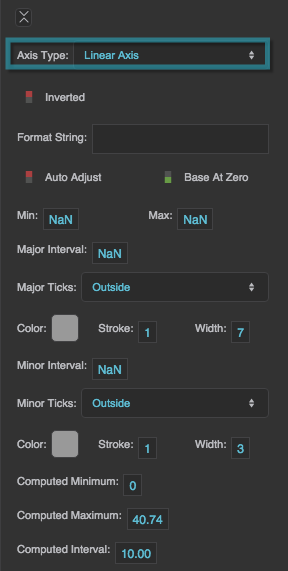
The Axis Type property
Inverted
Inverted
Inverted
Controls whether this axis is inverted.
TRUE
The smaller values appear at the top if this axis is vertical, or the right if it is horizontal. For a category axis, the top values in the table appear at the top or right of the axis.
FALSE
The smaller values appear at the bottom or left of the axis. For a category axis, the top values in the table appear at the bottom or left of the axis.
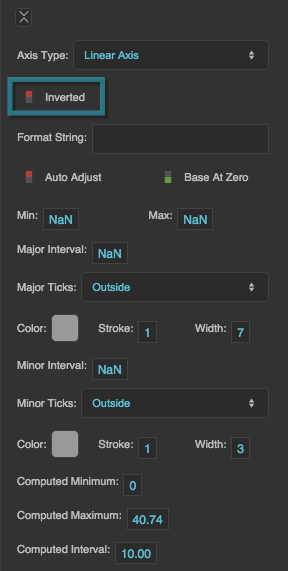
The Inverted property
Format String
Format String
Format String
Defines the format used for the axis labels. For example, a Datetime axis might use the string "MM/dd/yyyy", and a number axis might use the string ",##0.00". See here for a complete list of formats.
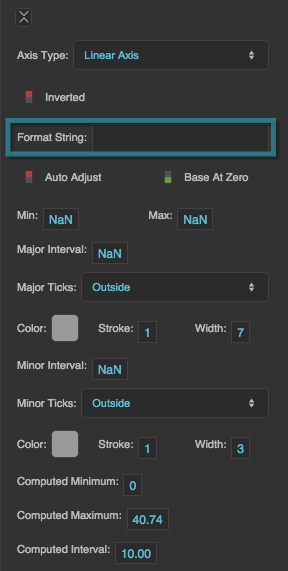
The Format String property
Auto Adjust
Auto Adjust
Auto Adjust
Specifies whether the axis range and ticks intervals are determined automatically based on the data feeding the chart.
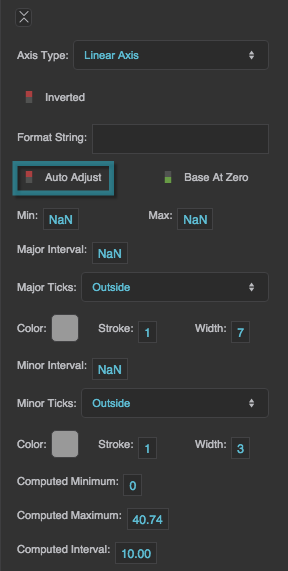
The Auto Adjust property
Base At Zero
Base At Zero
Base At Zero
Allows you to change the axis range minimum to decrease unused space on the chart.
TRUE
The axis minimum is zero, unless there are negative data values on this axis. In that case, the axis minimum is equal to, or slightly below, the lowest data value.
FALSE
The axis minimum is equal to, or slightly below, the lowest data value.
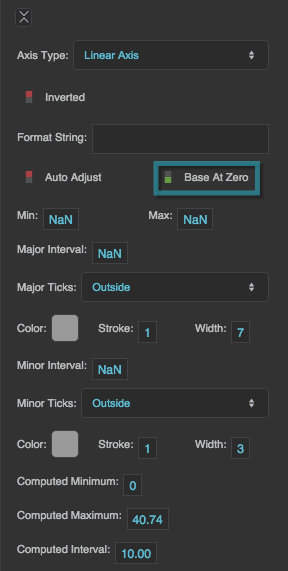
The Base At Zero property
Axis Minimum
Axis Minimum
Min
Defines the minimum of the axis range. If not set, the minimum is determined automatically.
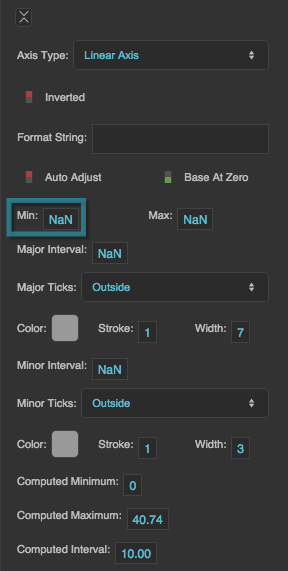
The Axis Minimum property
Axis Maximum
Axis Maximum
Max
Defines the maximum of the axis range. If not set, the maximum is determined automatically.
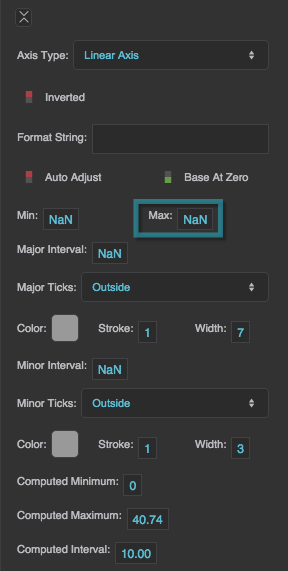
The Axis Maximum property
Major Interval
Major Interval
Major Interval
Defines the interval between each consecutive pair of major ticks, in the units of the axis.
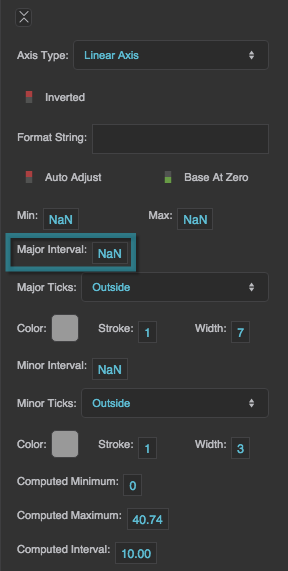
The Major Interval property
Align Labels To Interval
Align Labels To Interval
Align Labels To Interval
For a linear axis, specifies whether labels are placed at multiples of the major interval. Default is TRUE.
Major Tick Placement
Major Tick Placement
Major Tick Placement
Specifies whether the major ticks appear on the Inside, Outside, or Cross (center) of the line that represents this axis, or None. Default is Cross.
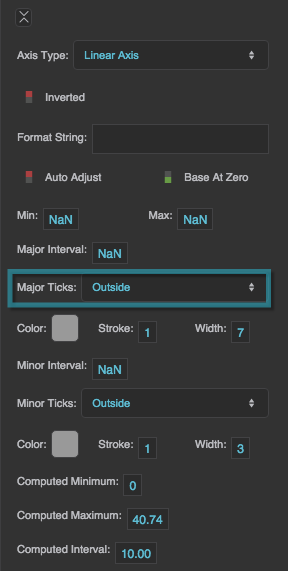
The Major Tick Placement property
Major Tick Stroke Color
Major Tick Stroke Color
Major Tick Stroke Color
Defines the stroke color of the major ticks.
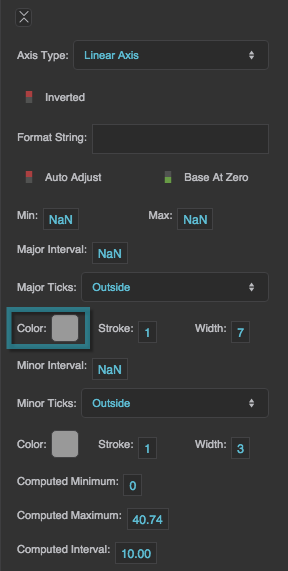
The Major Tick Stroke Color property
Major Tick Stroke Weight
Major Tick Stroke Weight
Major Tick Stroke Weight
Defines the stroke weight of each major tick.
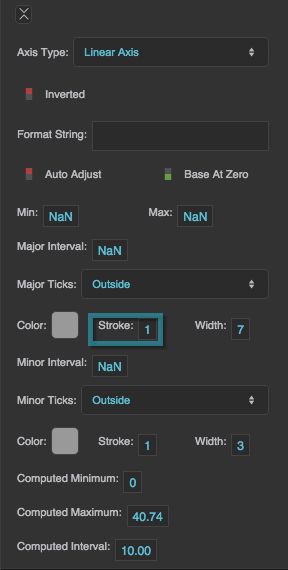
The Major Tick Stroke Weight property
Major Tick Length
Major Tick Length
Major Tick Length
Defines the length of each major tick.
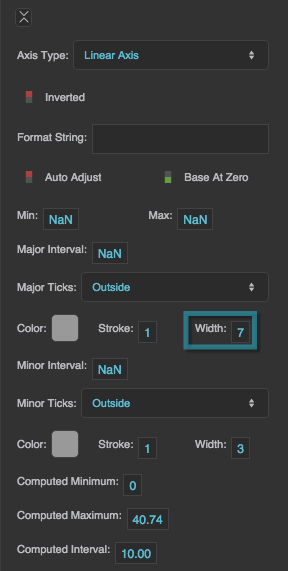
The Major Tick Length property
Minor Tick Interval
Minor Tick Interval
Minor Interval
Defines the interval between each consecutive pair of minor ticks, in the units of the axis.
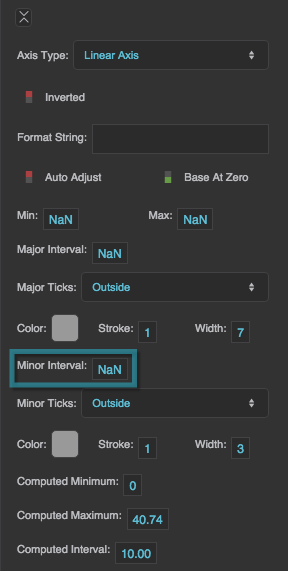
The Minor Tick Interval property
Minor Tick Placement
Minor Tick Placement
Minor Tick Placement
Specifies whether the minor ticks appear on the Inside, Outside, or Cross (center) of the line that represents an axis, or None. Default is Cross.
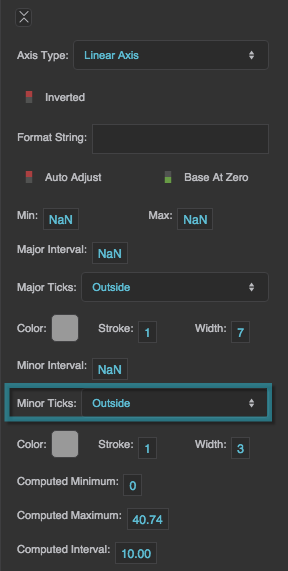
The Minor Tick Placement property
Minor Tick Stroke Color
Minor Tick Stroke Color
Minor Tick Stroke Color
Defines the stroke color of the minor ticks.
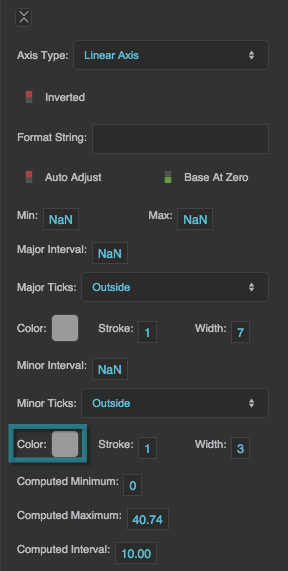
The Minor Tick Color property
Minor Tick Stroke Weight
Minor Tick Stroke Weight
Minor Tick Stroke Weight
Defines the stroke weight of each minor tick.
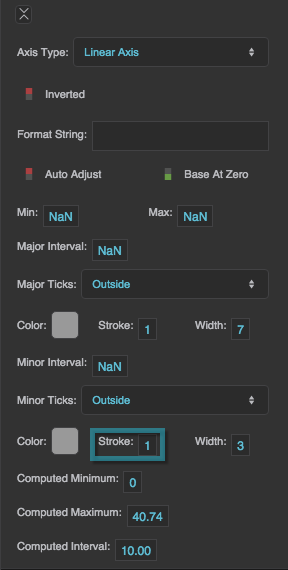
The Minor Tick Stroke Weight property
Minor Tick Stroke Length
Minor Tick Stroke Length
Minor Tick Stroke Length
Defines the length of each minor tick.
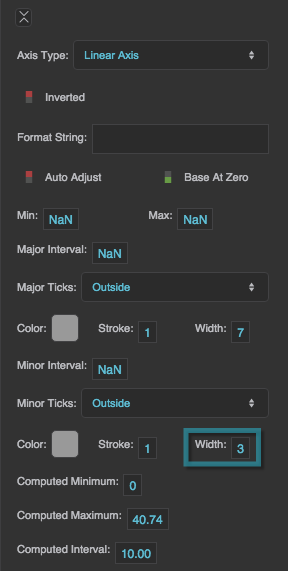
The Minor Tick Length property
Compare Mode
Compare Mode
Compare Mode
Defines the Compare Mode of this axis. Use a Compare Mode when you want to overlay data for different dates and times. See Designing Charts.
None
Series with different dates and times are not aligned.
Compare Mode is available for Datetime axes.
Hour
Times of day are aligned, so you can compare midnight with midnight.
Day
Date ranges are aligned, so you can compare "day one" from different ranges.
Week
Days of the week are aligned, so you can compare Mondays with Mondays.
Month
Days of the month are aligned, so you can compare firsts of the month.
Year
Days of the year are aligned, so you can compare January first with January first.
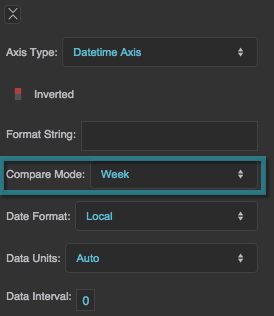
The Compare Mode property
Date Format
Date Format
Date Format
For a Datetime axis, specifies whether dates are shown in Server or Local time. Default is Local.
Data Units
Data Units
Data Units
Defines the units for this Datetime axis.
A value of Auto means that units are determined automatically based on the data feeding the chart.
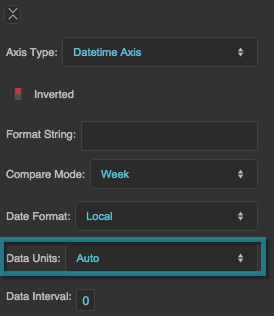
The Data Units property
Data Interval
Data Interval
Data Interval
Defines the interval between each consecutive pair of major ticks, in the units of the axis. This property is ignored if the Data Units property is set to Auto.
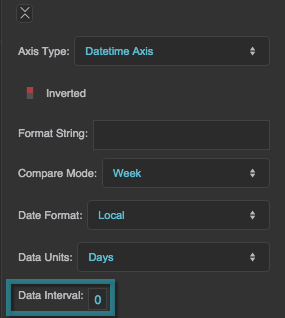
The Data Interval property
Date Range
Date Range
Date Range
For a Datetime axis, sets the axis minimum and maximum from a date range. This property only takes effect when Auto Adjust is FALSE.
Align To Units
Align To Units
Align To Units
For a Datetime axis, specifies whether labels are aligned to the start of the label units (for example, to the start of each day).
Left/Right Label Threshold
Left/Right Label Threshold
Left/Right Label Threshold
For a Datetime axis, a percentage of the label interval used to decide whether a label is shown before the first data point or after the last data point. Default is 75%.
Show Zero Label
Show Zero Label
Show Zero Label
For a Datetime axis, specifies whether to show the label for the zero date (January 1, 1970), which appears when the axis has no data. Default is TRUE.
Data Provider
Data Provider
Data Provider
Defines the table that feeds data to this category axis.
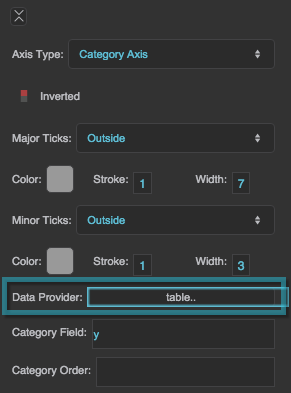
The Data Provider property
Category Field
Category Field
Category Field
Defines the table column that contains category names.
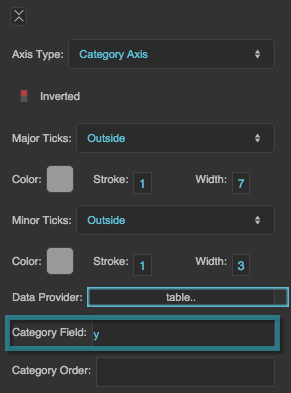
The Category Field property
Category Order
Category Order
Category Order
Defines the order of the categories on this axis, as a list of comma-separated values.
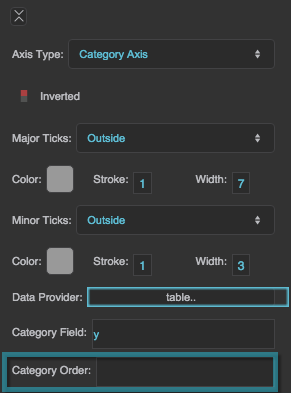
The Category Order property
Computed Minimum
Computed Minimum
Computed Minimum
Returns the minimum of the axis range, which is defined either automatically or by the Min property. This is a read-only property, so changing it does nothing.
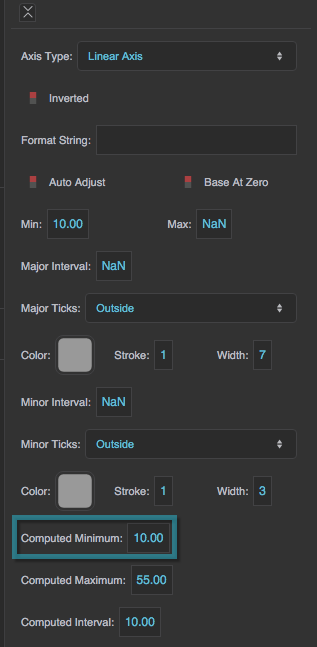
The Computed Minimum property
Computed Maximum
Computed Maximum
Computed Maximum
Returns the maximum of the axis range, which is defined either automatically or by the Max property. This is a read-only property, so changing it does nothing.
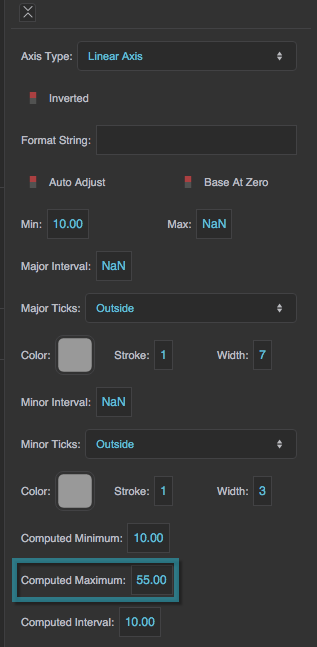
The Computed Maximum property
Computed Interval
Computed Interval
Computed Interval
Returns the interval between major ticks, which is defined either automatically or by the Major Interval property. This is a read-only property, so changing it does nothing.
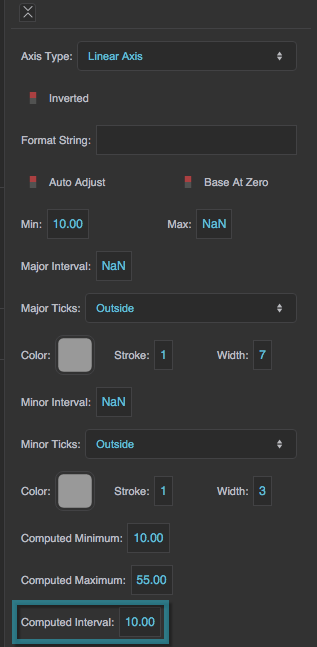
The Computed Interval property
Computed Units
Computed Units
Computed Units
For a Datetime axis, returns the units used for the axis labels, which are defined either automatically or by the Data Units property. This is a read-only property.
Radar Chart Axes
A radar chart has a radial (value) axis and an angular axis.
The radial axis has the same properties as a standard axis, except that there are no title properties. Axis Placement can only be Left or Right (default is Right). It also has Axis Minimum and Axis Maximum properties, which define the start and end values of the axis.
The angular axis has the Visible, Display, Labels (font settings, Label Gap, Label to Edge Gap, Label Type, Custom Label Symbol, Use div Labels), Axis Type, Inverted, Format String, range, interval, and major/minor tick properties (Color, Stroke, and Style for each), Axis Minimum, Axis Maximum, and category properties. It has no title, placement, axis line, or label rotation properties.