Designing Input Components
Form input components let users enter input.
DGLux5 form input components are HTML5 components. To read more about the behavior of each component type, you can consult an HTML5 reference like this one.
DGLux5 includes the following form input components:
For a detailed reference of properties that affect input components, see Common Properties and Input Component Properties.
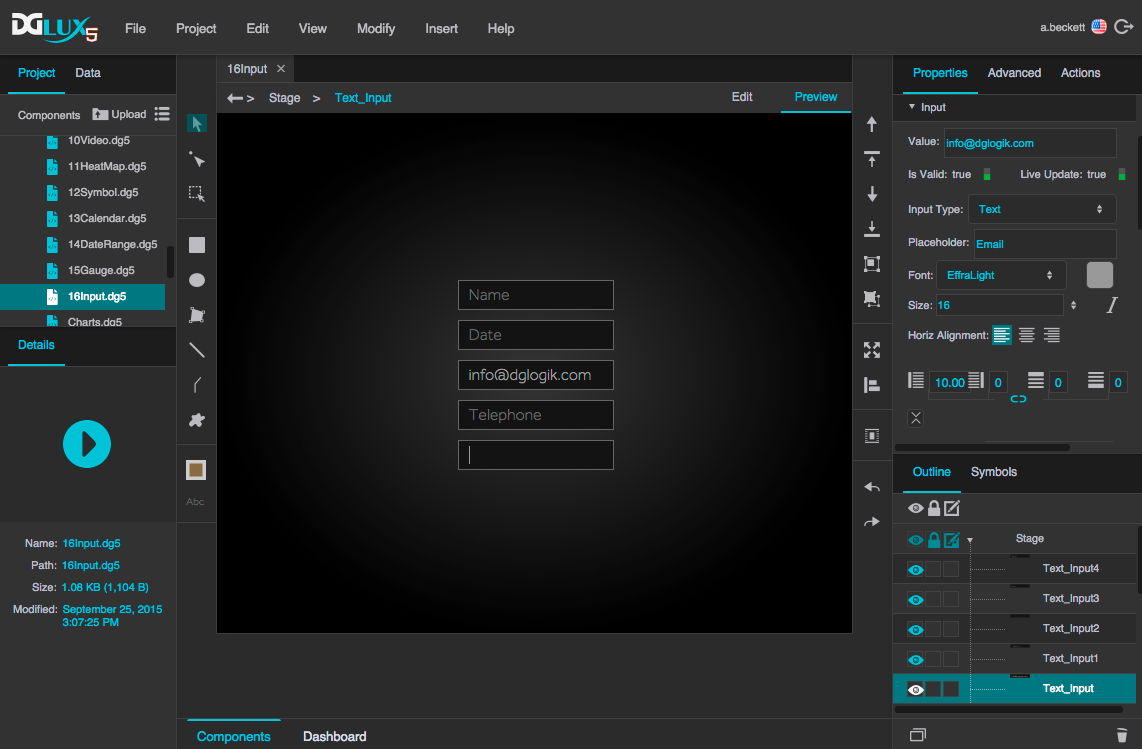
Text input components in DGLux5
Add a Form Input Component
To add a form input component:
- Select Insert > Form and the component type.
A Note about Styling Form Input Components
To a certain degree, you can style form input components using properties. However, some visual aspects of some input components depend on the user's browser and operating system. For example, the appearance of the drop-down list in the list input component, and that of the slider and track in the range input component, depend partly on the user's browser and OS. It is possible to create custom widgets that are less dependent on these factors.
Use Form Input to Change Data Metrics
To use form input to change data metrics, you can use a Data action.
These steps create a text input component that commits its contents to the data when the user presses Enter.
- Insert the input component by selecting Insert > Form > Text Input.
- With the input component selected, in the Actions panel, click
 Add Action, and specify Data Action.
- In the Data panel and Metrics panel, navigate to the data metric that you want to change.
- Right-click the data metric to display a list of command types.
- From the list, drag the relevant command type name to "drag data action here" in the Actions panel.
- Bind the text input component's value to the Data action's Value property:
- In the Outline, select the text input component.
- In the Property Inspector, hover over the Value property until a blue dot appears.
Click the blue dot and select Bind.
A small binding pop-up opens.
- Open the Actions panel.
Hover over the value in the pop-up until a blue dot appears, and drag the blue dot to the Value property.
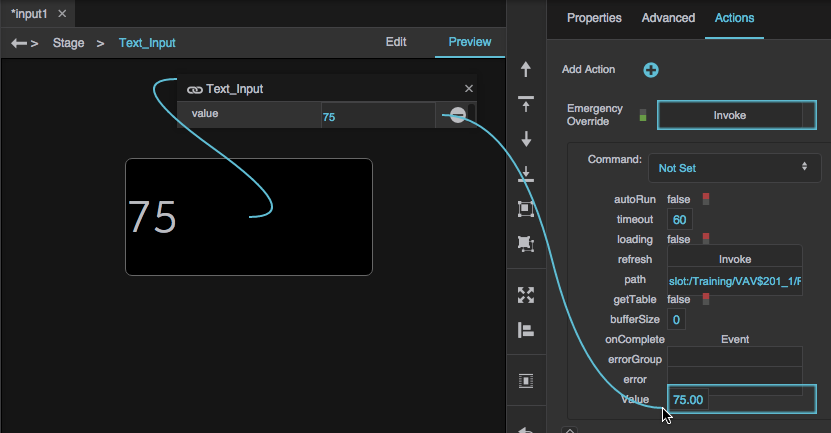
- Add a key press as the trigger for the action:
- In the Outline, next to the text input component, click
 Dataflow.
- Expand Logic, and add a Keyboard Event block to the dataflow window.
- With the text input component selected, click the Advanced properties tab, and find the onKeyDown property.
Bind the onKeyDown property to the input property of the Keyboard Event block.
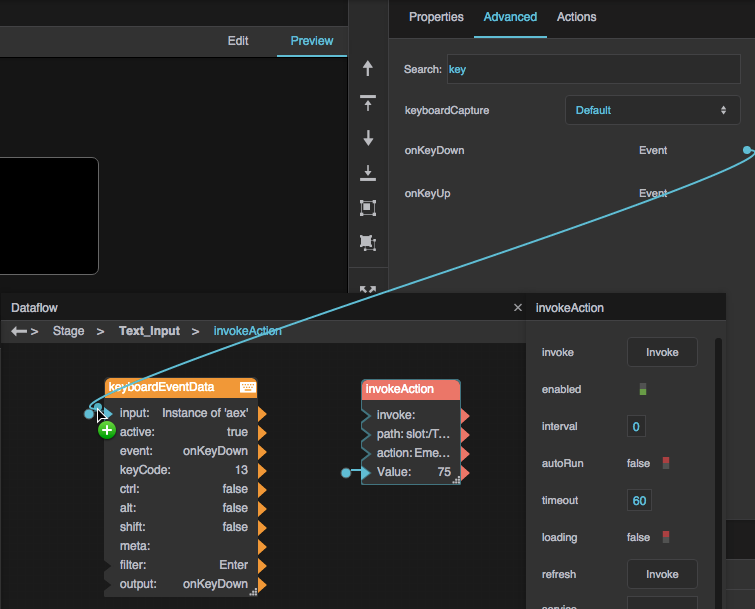
- For the filter property of the block, type
Enter. Link the output property of the Keyboard Event block to the input property of the Invoke Action block.
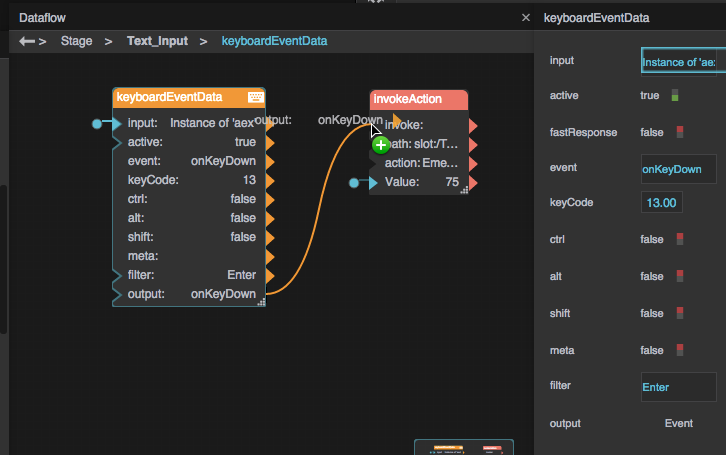
At runtime, when the user presses enter, the data action is executed using the contents of the component as the value.
Save Input as Value
To save a user's input as the component's value, you can use a Local Storage dataflow block.
- Insert the input component by selecting Insert > Form > Text Input.
- In the Outline, right-click the text input component, and select Dataflow.
- Expand Browser API, and add a Local Storage block to the dataflow window.
- For the key property of the Local Storage block, enter an identifying name, such as
inputValue. Bind the Value property of the text input component and the value property of the Local Storage block to each other.
At runtime, whenever the user enters input, it is saved as the value of the input component.
Input Component Properties
These properties affect input components.
For a guide to using input components, see Designing Input Components.
Input components are also affected by Common Properties.
Shared Input Properties
These properties affect any of the following components:
- Text Input
- Text Area
- Password Input
- Date Input
- Color Input
- Number Input
- Range Input
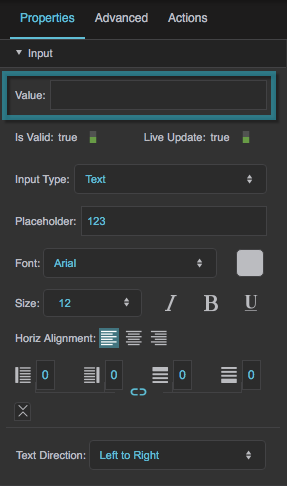
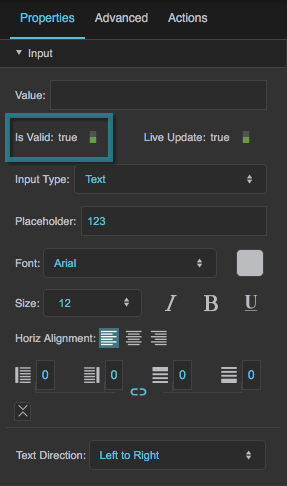
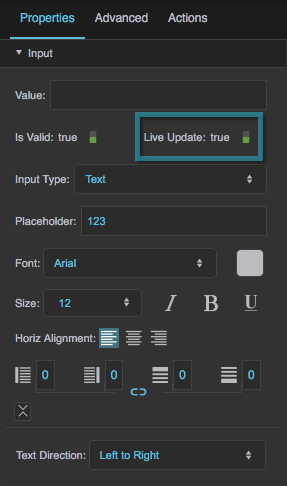
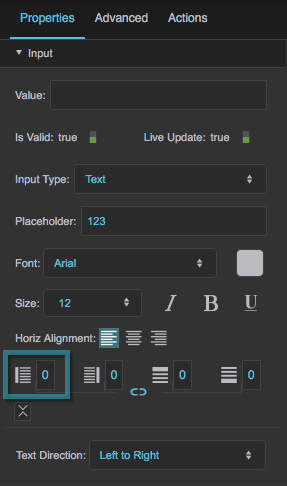
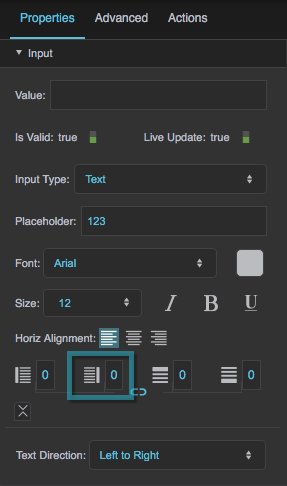
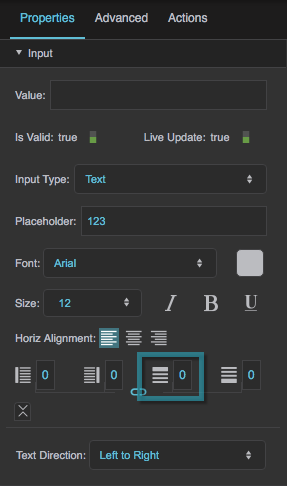
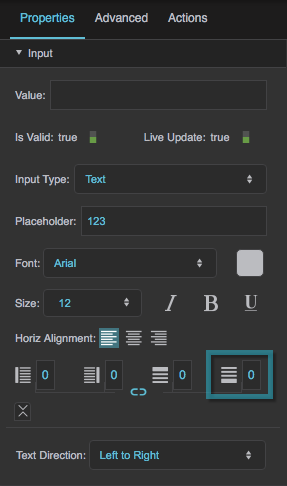
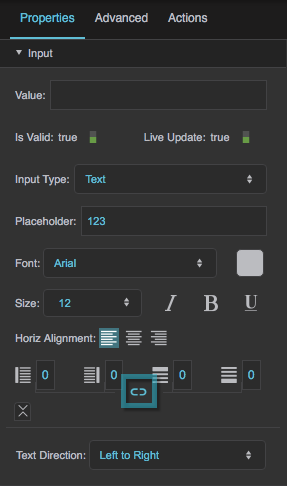
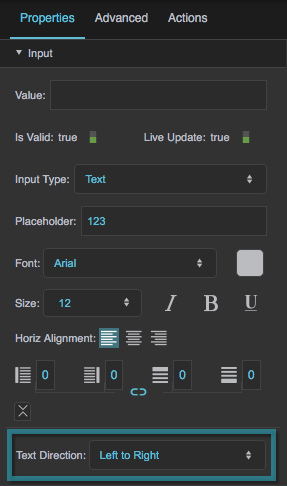
These properties affect any of the following components:
- Text Input
- Text Area
- Password Input
- Date Input
- Number Input
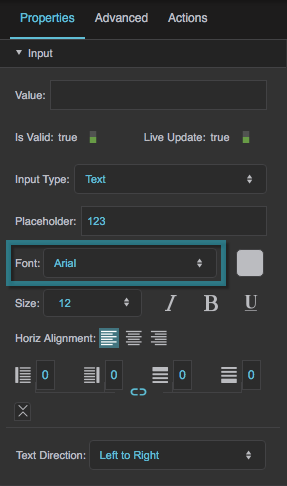
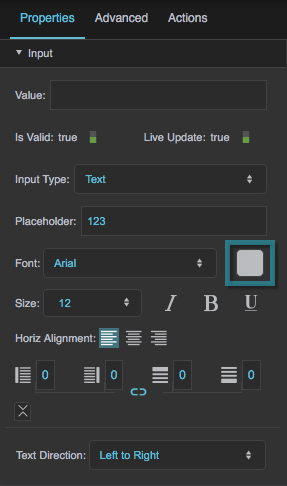
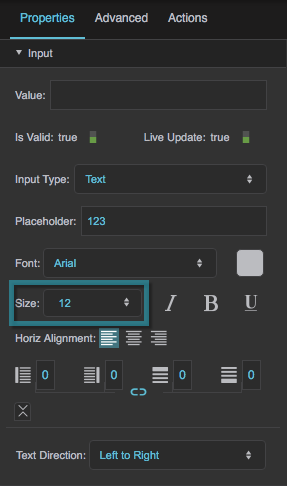
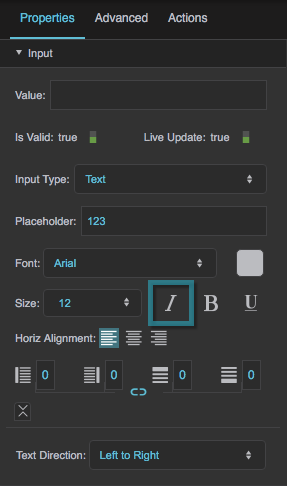
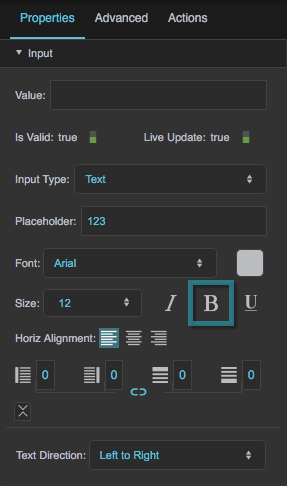
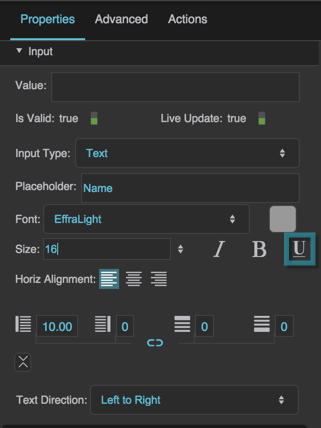
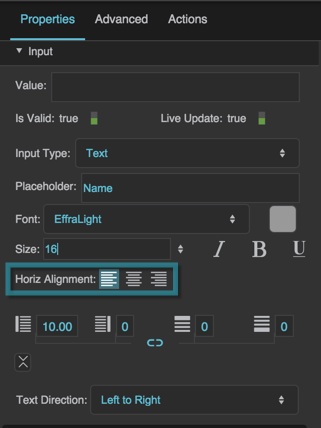
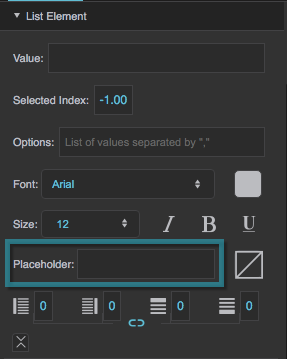
The Placeholder property affects any of the following components:
- Text Input
- Text Area
- Password Input
- Number Input
- List Input
Text Input and Text Area Properties
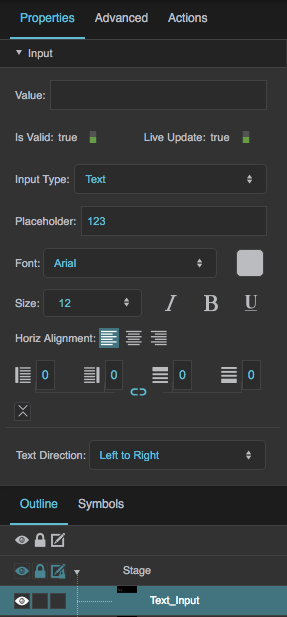
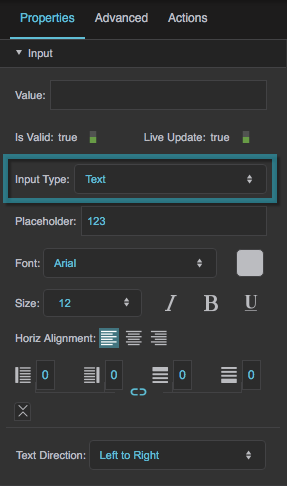
These properties affect a text input component or a text area component. These components are also affected by shared input properties.
Date Input Properties
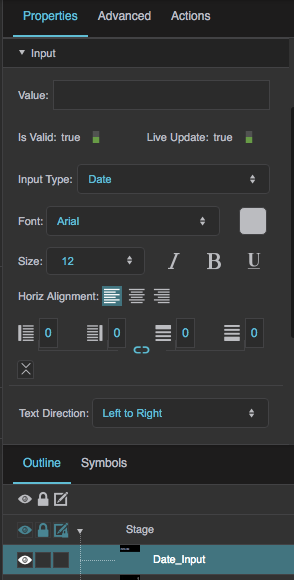
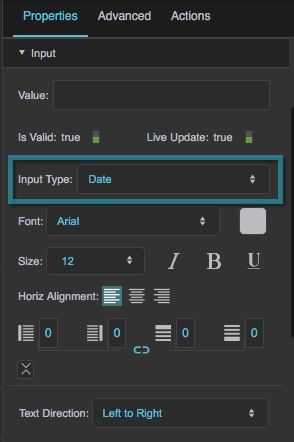
These properties affect a date input component. This component is also affected by shared input properties.
Color Input Properties
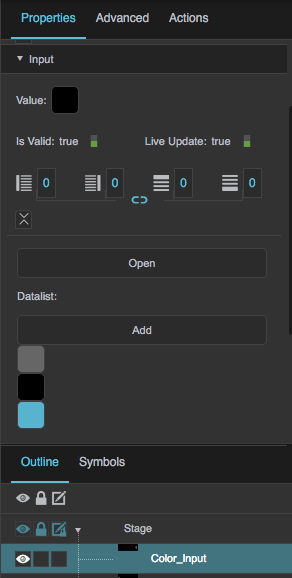
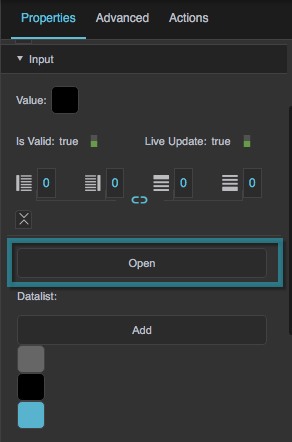
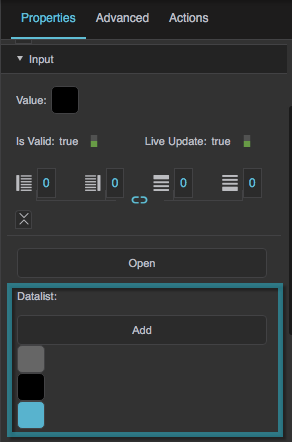
These properties affect a color input component. This component is also affected by shared input properties.
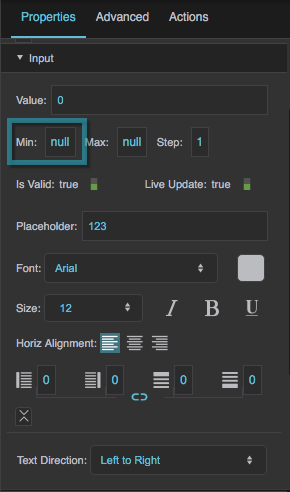
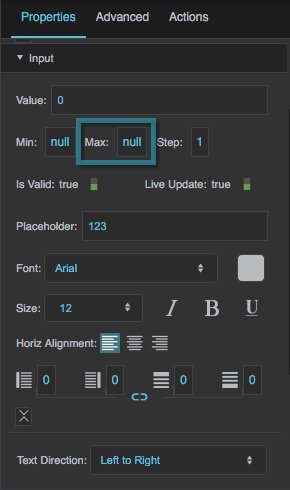
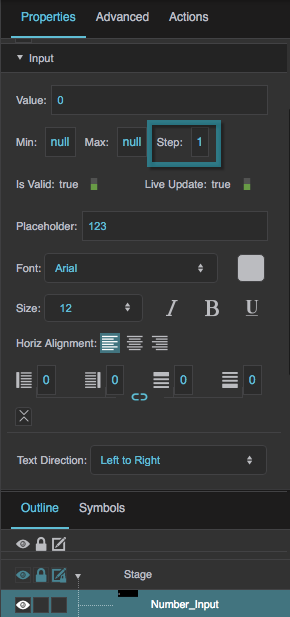
Number Input Properties
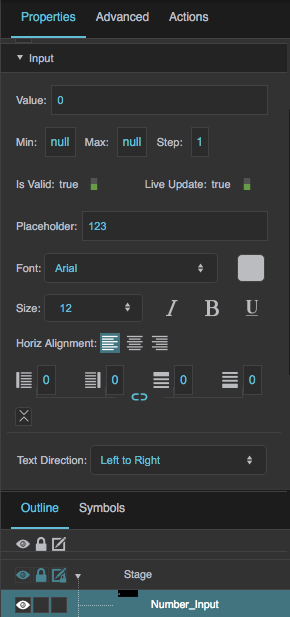
These properties affect a number input component. This component is also affected by shared input properties.
Range Input Properties
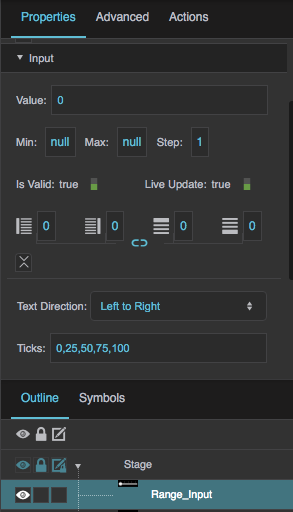
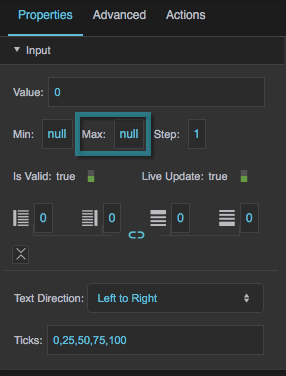
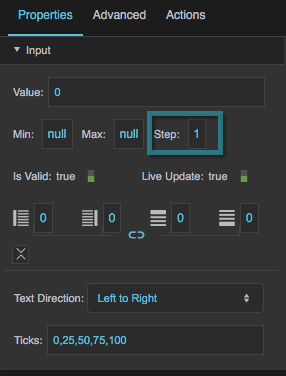
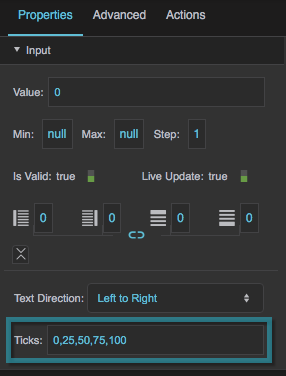
These properties affect a range input component. This component is also affected by shared input properties.

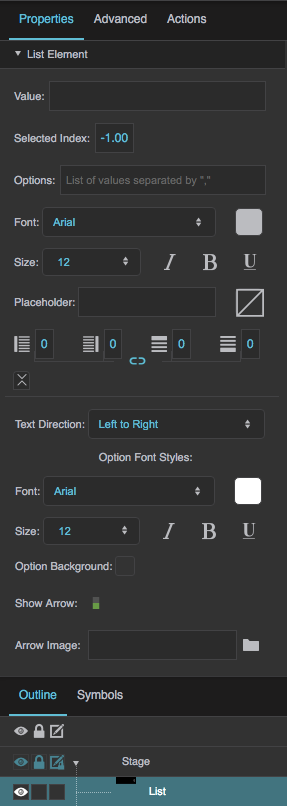
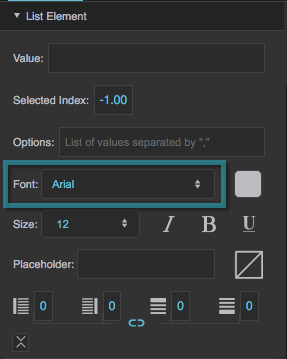
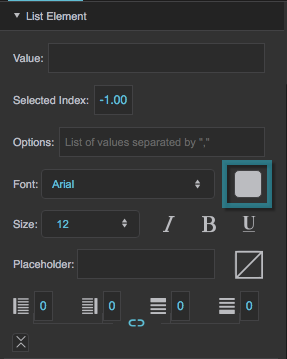
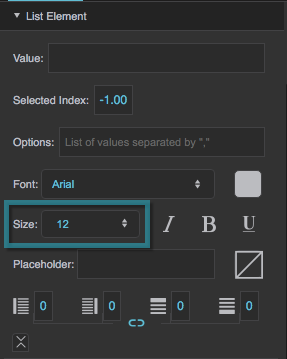
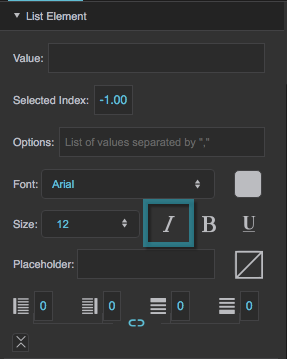
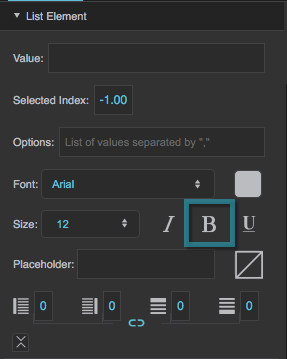
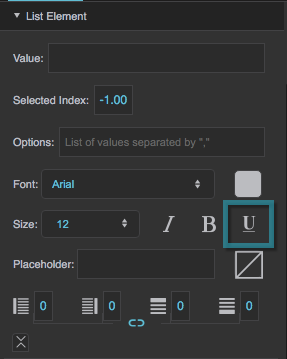
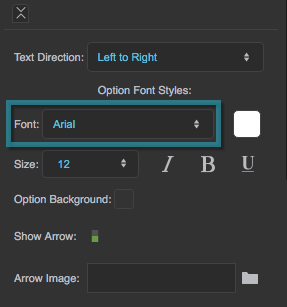
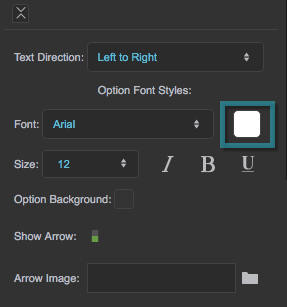
List Input Properties
DG Time Input Properties
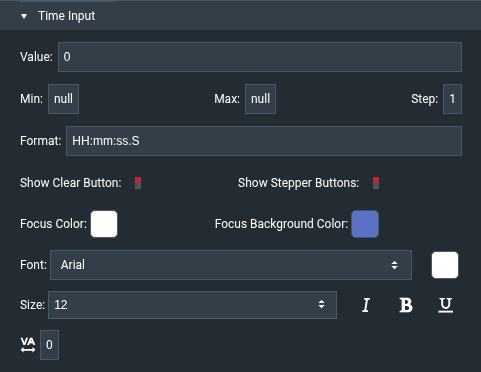
These properties affect the DG Time Input component. They appear in the Time Input section of the Property Inspector. All time values are in milliseconds since midnight.
More Resources
This thread in the DGLogik Community Forum addresses user input: