Relativize
| Block Group: | Data Services |
| Block Icon: |  |
Converts a full file path to a relative file path, and manages changes to the non-relativized part of the path.
This block is useful when you have a symbol associated with metrics, and you want to use one property to change which folder the points come from.
For information on using dataflow blocks, see Dataflow.
Video Tutorial: Introduction to Relativization
Input/Output Properties
These properties can take input and give output.
- service (string)
- path (string)
- partialPath (boolean)
service specifies the data service to relativize. Leave it blank to use the default data service.
path sets and returns the current parent directory containing the relative paths.
partialPath specifies how the relative paths are combined with path.
- FALSE (default)—path is a parent node; the full path is path +
/+ the relative path. - TRUE—path is a prefix; the full path is path directly followed by the relative path. This allows part of a node name to be relativized.
Output Properties
These properties can give output. They cannot take input.
- serviceId (string)
- fullPath (string)
- output (string)
serviceId returns the ID of the data service used.
fullPath returns the full (unrelativized) base path of the relativizing service.
output is an instance of the DGLux5 relativizing service. Click the button to interact with the service. See Use Case.
Example
This is the relativization dialog.
| Example | Description |
|---|---|
 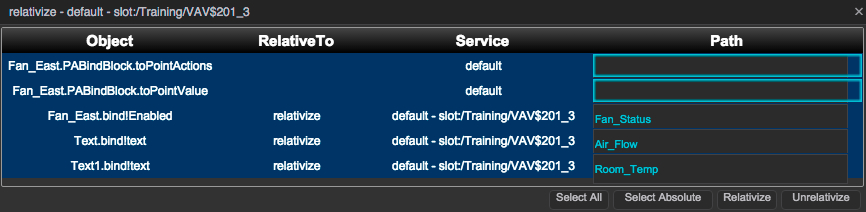 | The paths in use in the parent object of the dataflow, before and after relativizing. |
Use Case
A typical use case for the Relativize block is to create a widget that can be re-used for multiple data sources. To create this effect, watch Introduction to Relativization, or follow these steps:
- In the block properties panel, drag the parent location to the path field.
Next to the output property, click Relativize.
A pop-up dialog opens, displaying all the paths in the specified directory that are currently associated with the component.
- Within the pop-up dialog, select the paths you want to relativize, and click Relativize. The relativized paths are listed in the Path column. The parent directory, or the non-relativized part of the path, is listed in the Service column.