dglux5_wiki:widgets_and_property_inspector:property_inspector:group:scaling

Action unknown: plugin_bookcreator__addtobook

Scaling Properties

These properties affect the placement and scaling of this group's children. Scaling can be used only with Absolute layout. The Scaling section is hidden when the group's layout is Horizontal or Vertical, or when the group's zoom tool is enabled.
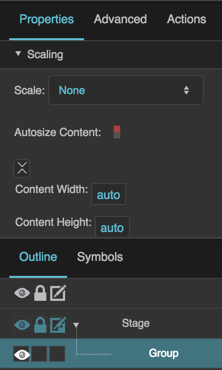
Scaling properties
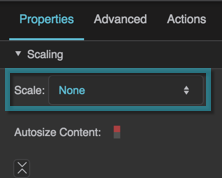
The Scaling properties in the Property Inspector
Scale

Scale

Scale
Specifies the scaling behavior of children of this group when the group size changes. Only works when group layout is absolute.

None
Children do not scale when group size changes.

Fit ratio
Children scale while maintaining their aspect ratios.

Fit
Children scale without maintaining their aspect ratios.

The Scale property
The Scale property

Autosize Content

Autosize Content

Autosize Content
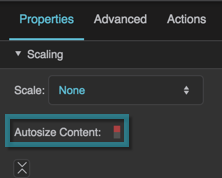
Specifies whether this group’s content inherits the group size.

TRUE
Content inherits the group size. This property can also be used to bring overflowing content into the bounds of the group, but only if the content overflows to the right or bottom of the group.

FALSE
Content does not inherit the group size.

The Autosize Content property

Content Width

Content Width

Content Width
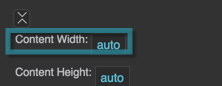
Found under Advanced. The width of the group content before scaling happens, in pixels. Scaling is calculated based on this width. When you change Scale from None to Fit Ratio or Fit, this value is set automatically to the group's current width. You can also edit it to change the design size of the content.

The Content Width property

Content Height

Content Height

Content Height
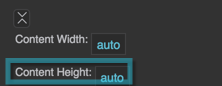
Found under Advanced. The height of the group content before scaling happens, in pixels. Scaling is calculated based on this height. When you change Scale from None to Fit Ratio or Fit, this value is set automatically to the group's current height. You can also edit it to change the design size of the content.

The Content Height property

Keep Aspect Ratio

Keep Aspect Ratio

Keep Aspect Ratio
Found under Advanced, next to Content Width and Content Height. If enabled, changing Content Width also changes Content Height (and the reverse) so that the content aspect ratio is kept.

The Favorites button next to it lets you save and reuse content sizes.

  • dglux5_wiki/widgets_and_property_inspector/property_inspector/group/scaling.txt
  • Last modified: 2026/10/22 13:31
  • by 127.0.0.1