Mouse Event
| Block Group: | Logic |
| Icon: |  |
Listens for the specified mouse event, and returns the location of the cursor when the event occurs.
As an advanced use, this block can also be used to record information when dragging text, files, or elements onto an element.
For information on using dataflow blocks, see Dataflow.
Input/Output Properties
These properties can take input and give output.
- input (event)
- active (boolean)
- fastResponse (boolean)
- preventDefault (boolean)
- stopPropagation (boolean)
input specifies the event that triggers this block. Make sure that you have selected the correct parent element for the event, and then find the event in the Advanced properties and bind it to this property. Examples include:
- onClick – The user clicks the element.
- onClickOff – The user clicks the element (paired with onClickOn).
- onClickOn – The user clicks the element (paired with onClickOff).
- onDoubleClick – The user double-clicks the element.
- onMouseDown – The user presses the mouse button over the element.
- onMouseEnter – The user moves the cursor onto the element.
- onMouseLeave – The user moves the cursor off of the element.
- onMouseMove – The user moves the cursor while it is over the element.
- onMouseMoveGlobal – The user moves the cursor anywhere on the screen.
- onMouseUp – The user releases the mouse button over the element.
- onMouseUpGlobal – The user releases the mouse button anywhere on the screen.
- onMouseWheel – The user rotates the mouse wheel either up or down.
- onRightClick – The user right-clicks on the element.
active sets or returns whether this block is currently listening for the specified event. The default is TRUE.
fastResponse determines whether the fastResponse feature is enabled. Use this feature when you troubleshoot performance speed issues relating to this block.
- TRUE: When the event is received, pending dataflow updates are run immediately, so the response is as fast as possible. This could cause other actions to be delayed to the next frame.
- FALSE: This is the default behavior.
This property is not shown on the block.
preventDefault specifies whether the browser's default response to the event is disabled. The default is FALSE. This property is not shown on the block.
stopPropagation specifies whether the event is stopped from propagating further (in the capturing and bubbling phases). The default is FALSE. This property is not shown on the block.
Output Properties
These properties can give output. They cannot take input.
- event (string)
- x (number)
- y (number)
- pageX (number)
- pageY (number)
- dragData (binary)
- dragSource
- fileName (string)
event returns the event type that this listener heard.
x returns the distance, in pixels, from the left container boundary of the element to the cursor at the time of the mouse event. Positive values are to the right of the boundary.
y returns the distance, in pixels, from the top container boundary of the element to the cursor at the time of the mouse event. Positive values are below the top container boundary.
pageX, pageY, dragData, dragSource and fileName are not shown on the block.
pageX returns the distance, in pixels, from the left page boundary to the cursor at the time of the mouse event. Positive values are to the right of the left page boundary.
pageY returns the distance, in pixels, from the top page boundary to the cursor at the time of the mouse event. Positive values are below the top page boundary.
dragData returns the binary data of the file that is dropped onto this element. To use this property, you must do the following:
- Enable the droppable Advanced property for this element.
- Set the dropGroup Advanced property for this element to
file_png. You can also replacepngwith another file extension.
dragSource returns the ID of the element that is dropped onto this element. To use this property, you must do the following:
- Enable the droppable Advanced property for this element.
- Enable the draggable Advanced property for the element to be dragged.
- Make sure that the dragGroup Advanced property is the same for both elements.
fileName returns the name of the file that is dropped onto this element. To use this property, you must do the following:
- Enable the droppable Advanced property for this element.
- Set the dropGroup Advanced property for this element to
file_png. You can also replacepngwith another file extension.
Model
This is a basic use of the block.
| Dataflow Model | Description |
|---|---|
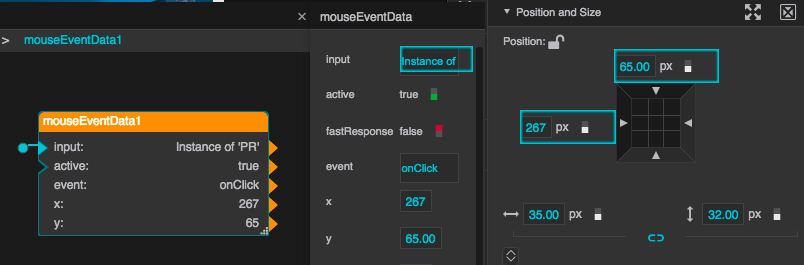 | The x and y properties of a group’s Mouse Event block are bound to the x and y properties of a child shape. When the mouse enters the group, the shape moves to the mouse location. |
Use Case: Uploading Files at Runtime
This example shows you how to enable uploading files to the project at runtime.
For steps to create a file input component that allows file upload at runtime, see File Input.
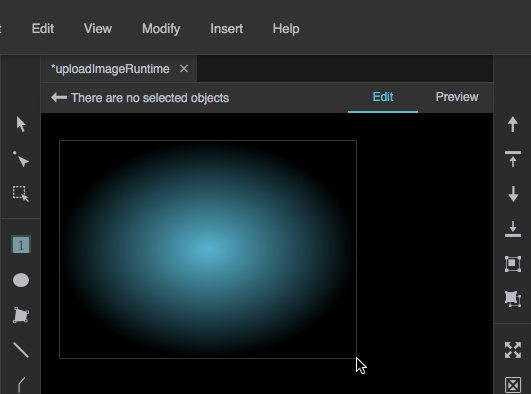
Insert a shape.
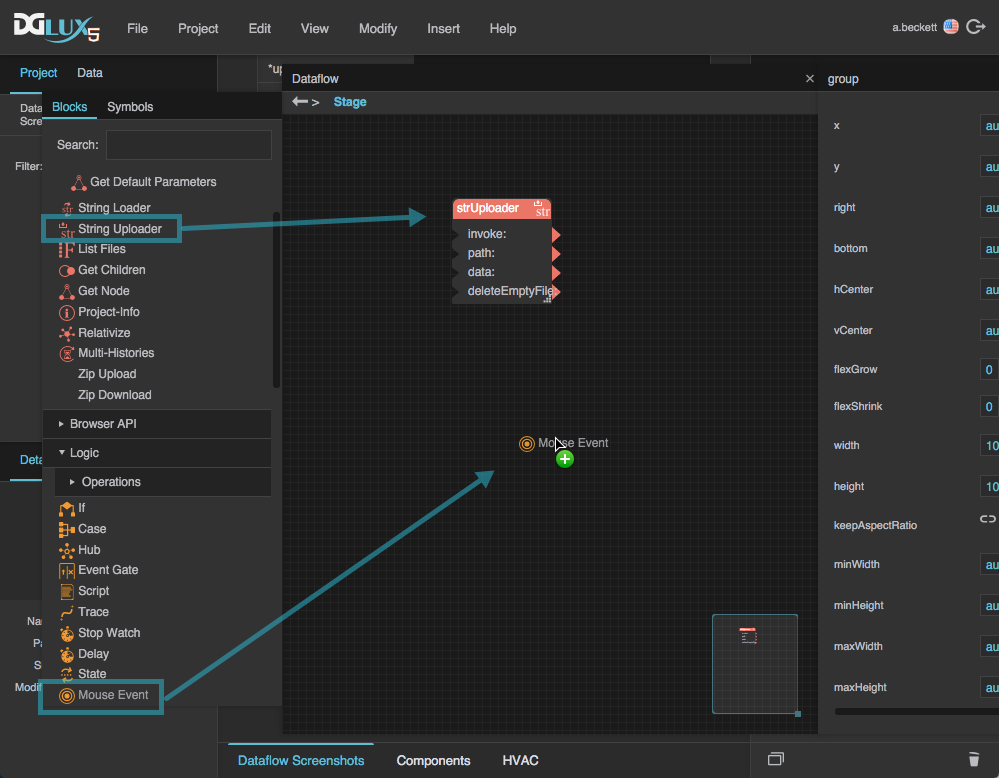
In the Outline, right-click the Stage and select
 Dataflow. Then, add a String Uploader block and a Mouse Event block to the Dataflow window.
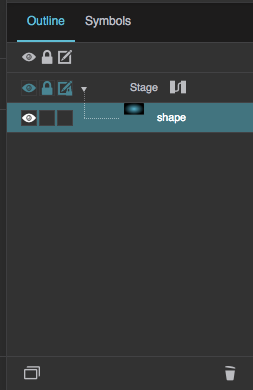
In the Outline, select the shape.
- In the Advanced properties panel:
- Set droppable to TRUE.
For dropGroup, enter
file_binary.
Find the onDragDrop event, and bind it to the input property of the Mouse Event block.

Bind the dragData property of the Mouse Event block to the data property of the String Uploader block.

Bind the data property of the String Uploader block to the invoke property of the String Uploader block.
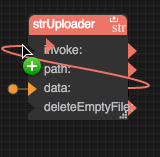
For the path property of the String Uploader block, add the path of the folder where you want the uploaded file to be stored, including the file name and extension for the uploaded file. For example, enter
assets/test.png.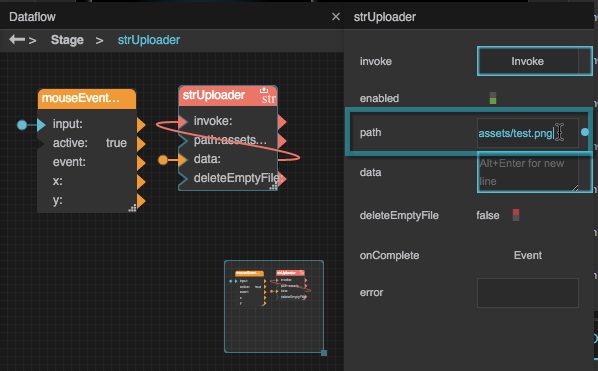
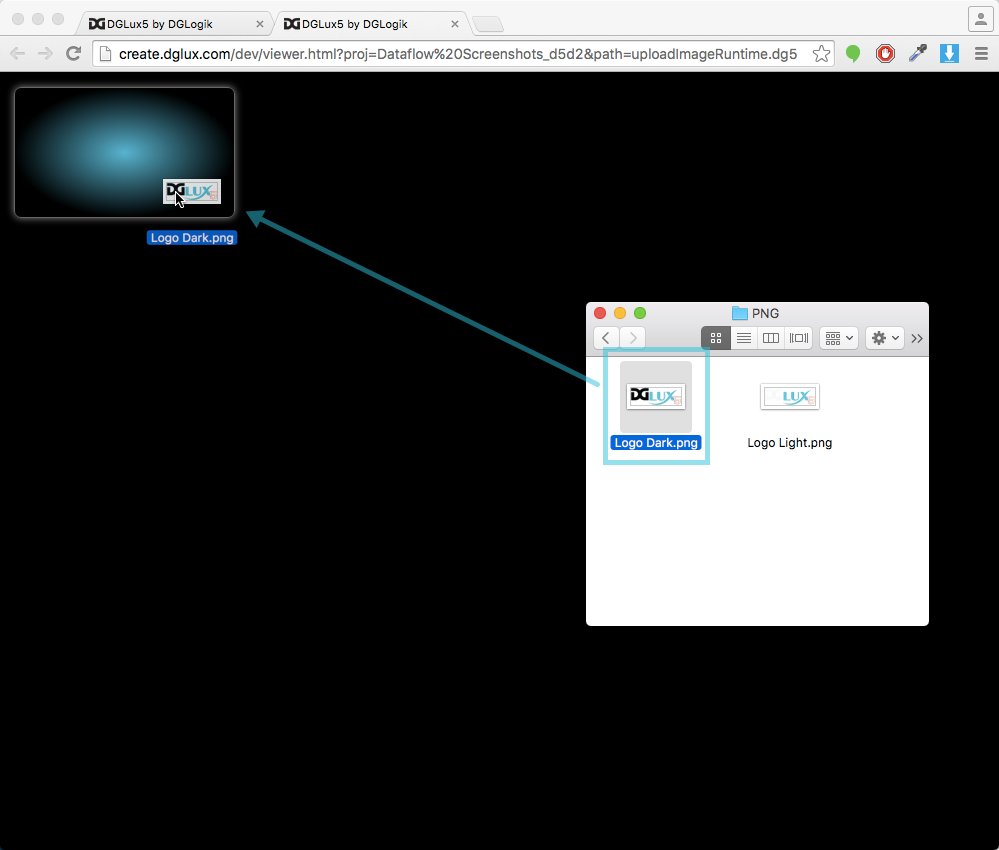
To test, drag a PNG file from your computer's file system to the shape.
In the browser tab that holds the DGLux5 editing editing environment, in the Project panel, select
 Menu > Refresh.
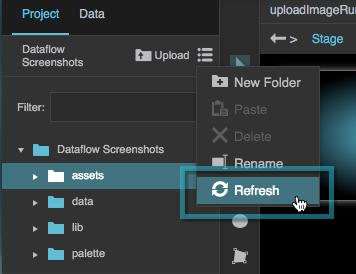
The image that you uploaded is in the specified folder.

More Resources
This thread in the DGLogik Community Forum shows another use case for the block: