Repeaters
A repeater takes a symbol and renders an instance of that symbol for each row of data in a table. Each instance of the symbol can have different parameter values, based on the data in the given row.
This page covers steps to make a simple repeater using the group component. You can also create repeaters for view decks, Google Maps, map groups, and data grids. A similar effect can be created for the markers, bars, or columns in a chart using an Item Renderer.
DGLux5 also features a Raw SVG Repeater that repeats an SVG instead of a symbol.
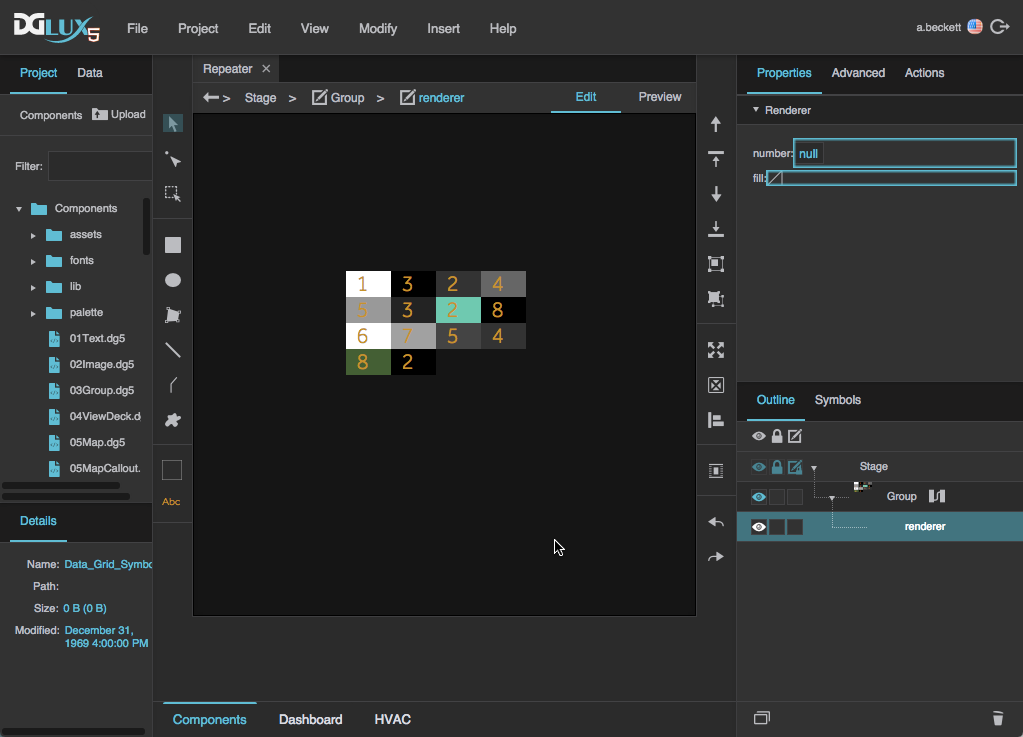
A repeater created using a group component in DGLux5
Video Tutorial: Repeaters
Create a Simple Repeater
These steps show you how to create a simple repeater using a group component. In these steps, you will use a Table dataflow block and a symbol.
Configure the Table
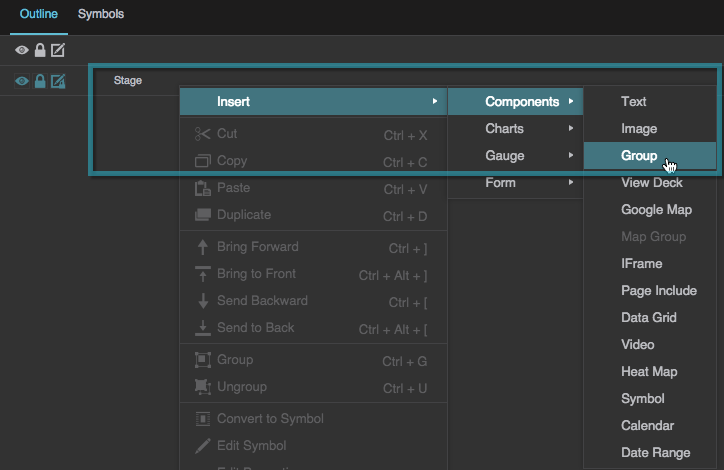
In the Document window or Outline, right-click the Stage and select Insert > Components > Group.
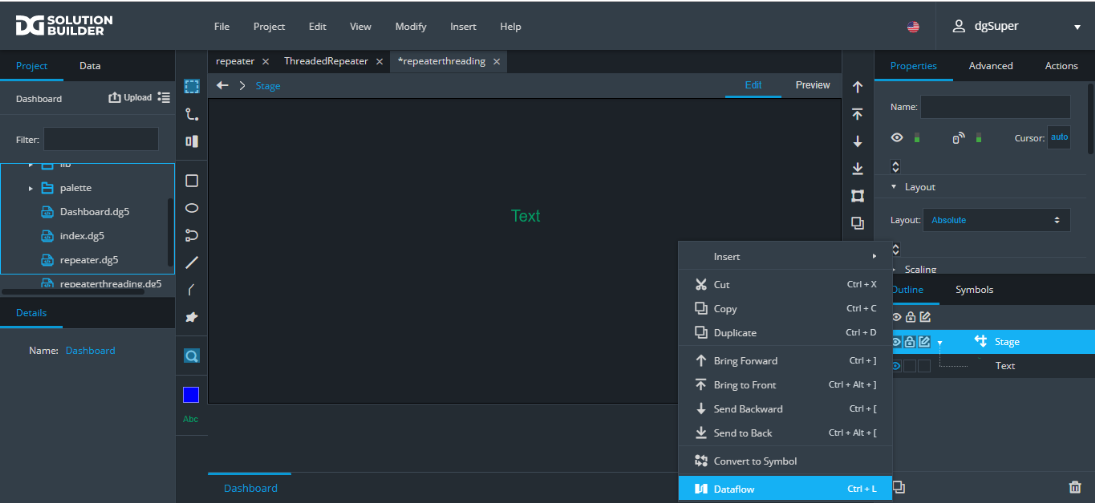
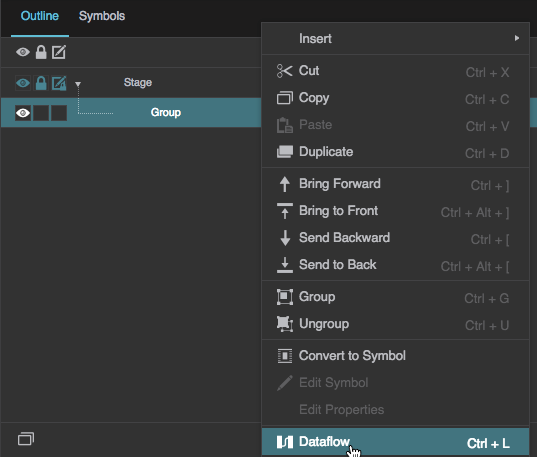
Right-click the group and select
 Dataflow.
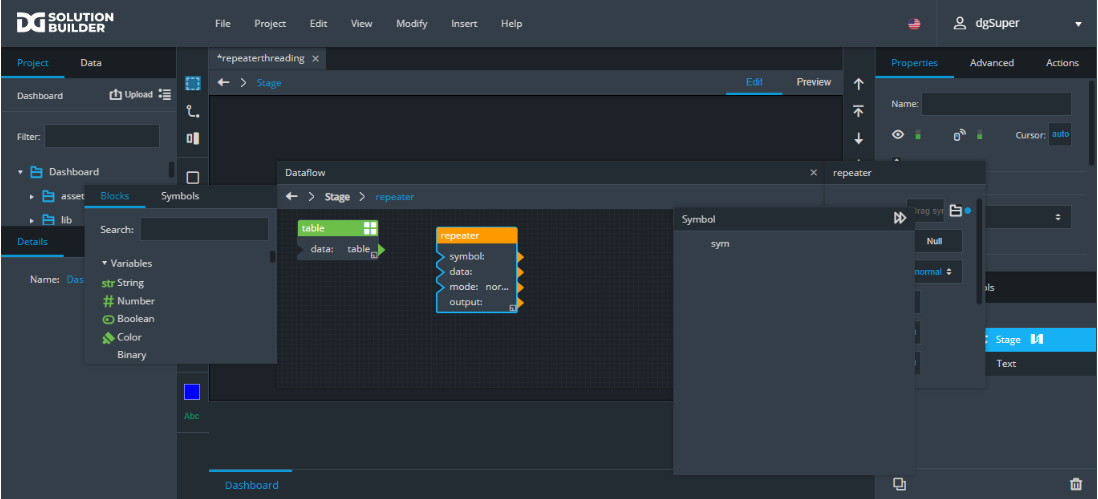
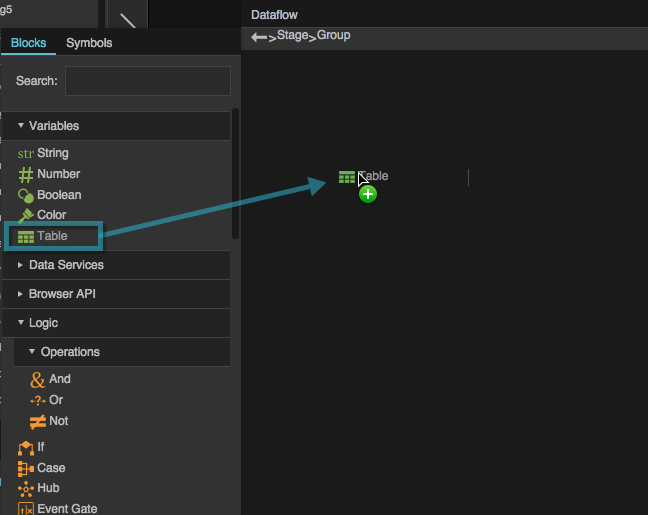
Drag a Table dataflow block to the dataflow window.
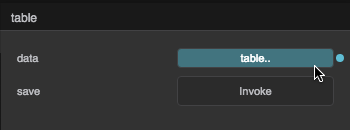
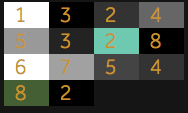
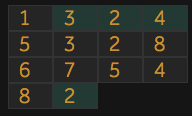
Click the button for the data property to open the table, and then edit the table so that it appears similar to the image below.
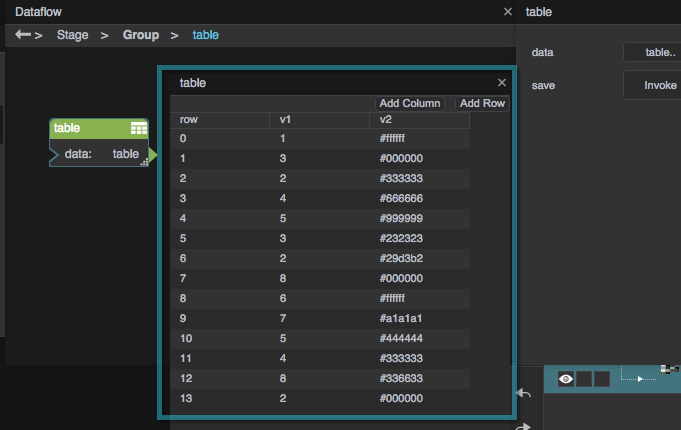
In the image, the first column contains integers, and the second column contains hexadecimal color codes. For help, see Enter Data in a Table Dataflow Block.
- Without closing the dataflow, select the group in the Outline.
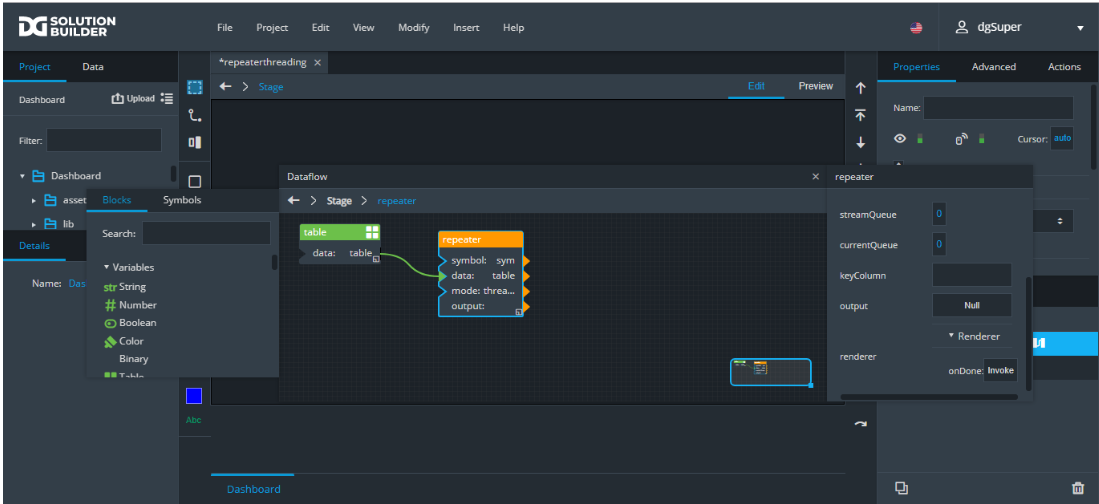
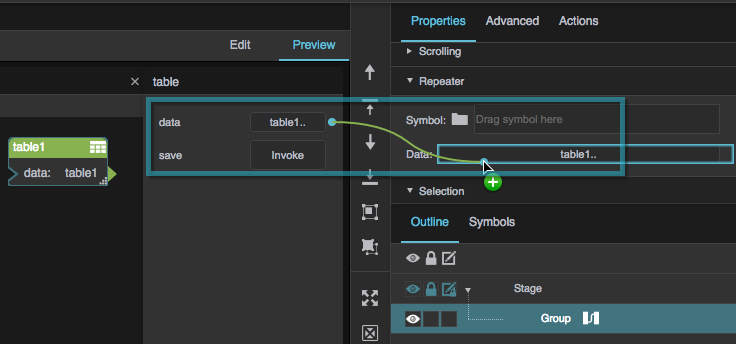
In the Property Inspector, under Repeater, bind the table for your repeater to the Data property.
Create the Symbol
- Create a symbol for your repeater:
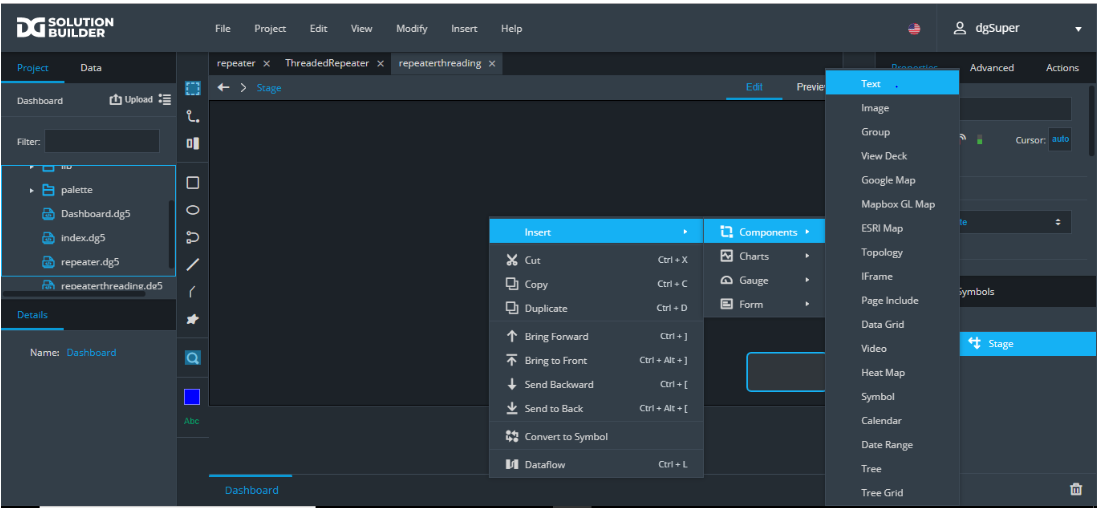
- Right-click the Stage, and select Insert > Components > Text.
- Right-click the text component that you added, and select
 Convert to Symbol.
Name the symbol
symbol, and click OK.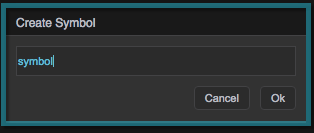
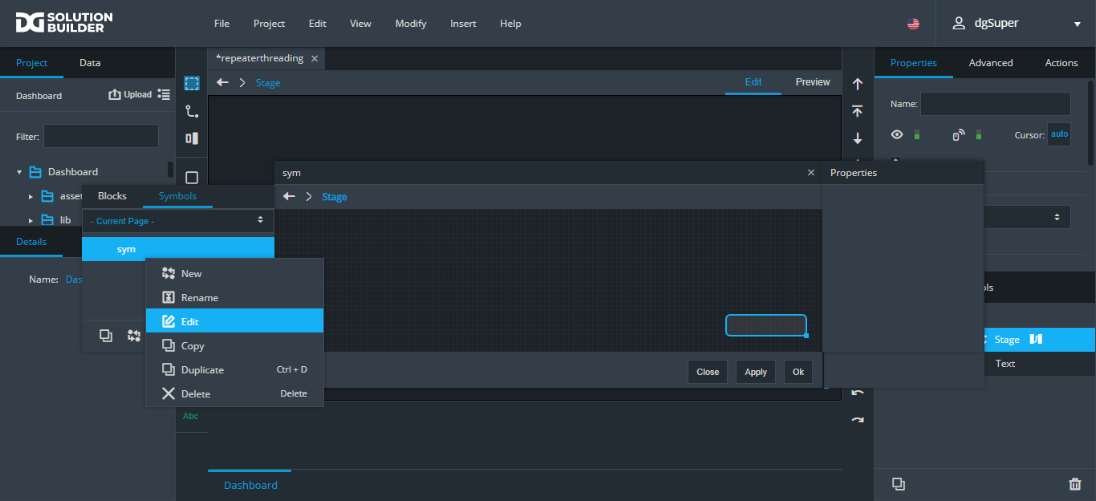
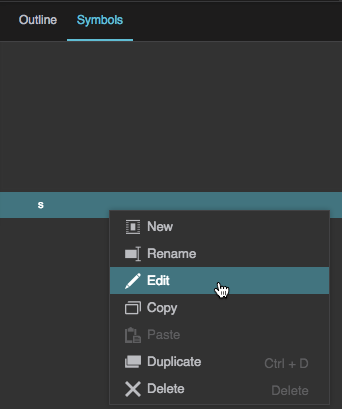
In the Symbols panel, select symbol. Then, right-click symbol, and select Edit.
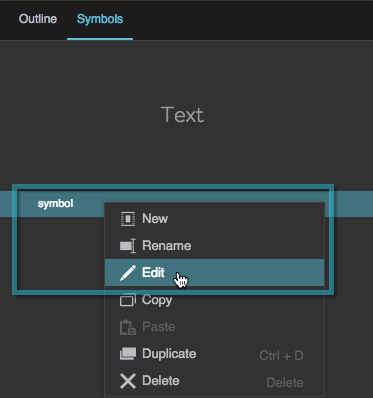
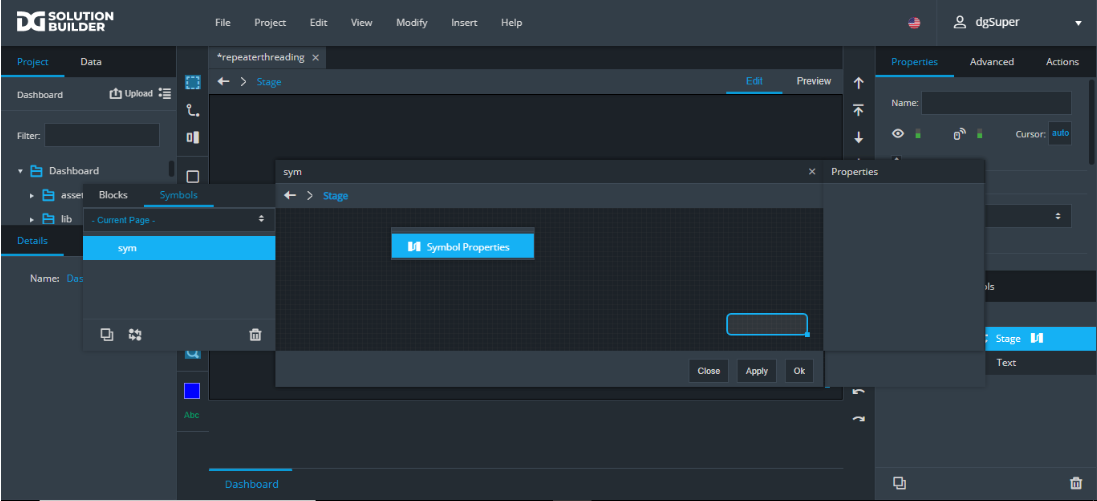
- In the Outline, right-click symbol, and select Edit Properties.
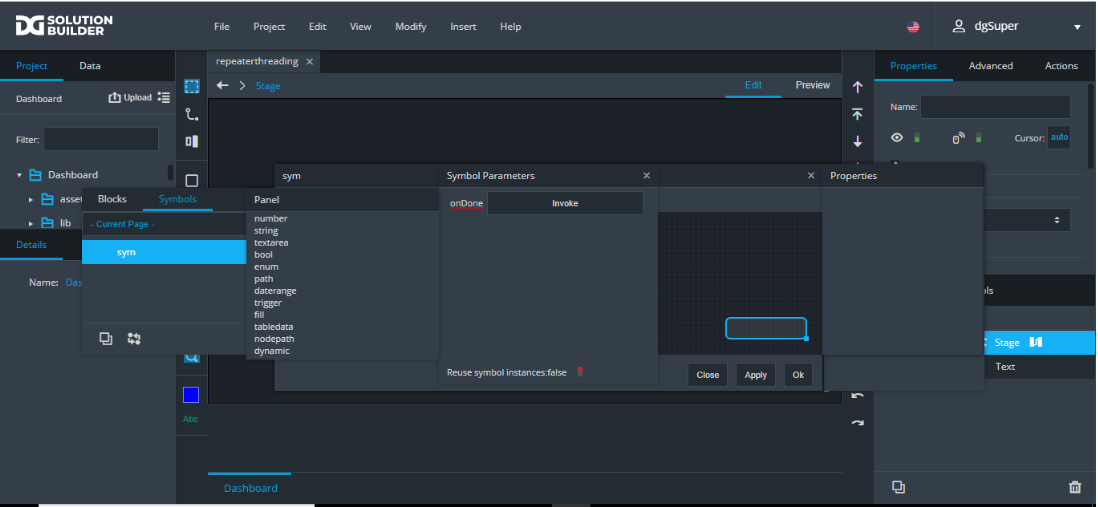
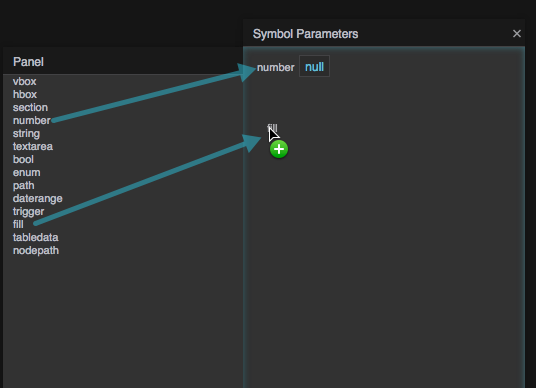
In the Symbol Parameters dialog, drag one number and one fill to the right-hand panel.
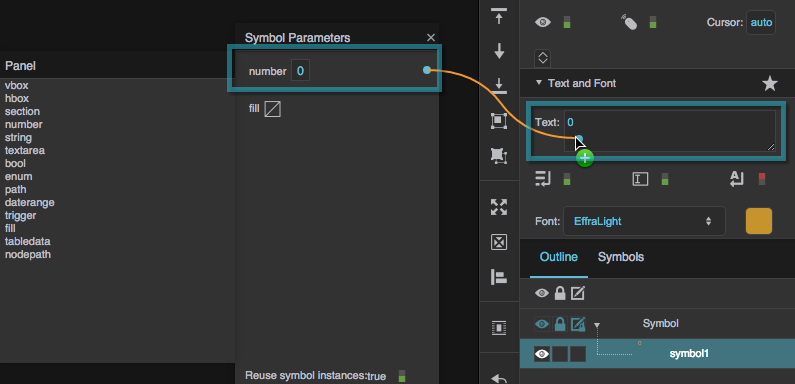
Bind the number parameter to the Text property in the Property Inspector.
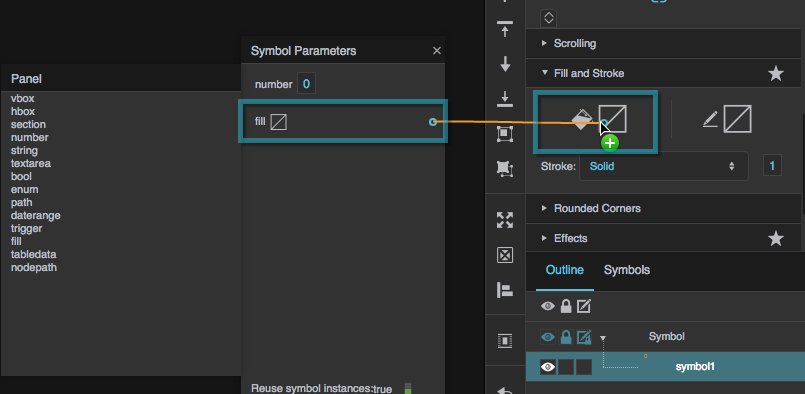
Bind the fill parameter to the Fill property in the Property Inspector.
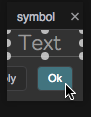
Close the Symbol Parameters dialog, and then click OK to close the symbol editing dialog.
Finish the Repeater
In the Outline, select the group, and ensure that the group's Layout property is set to Horizontal or Vertical. You might also want to set the Wrap property to Wrap.
If the group's layout is Absolute, all the symbol instances will appear at the same location in the group.
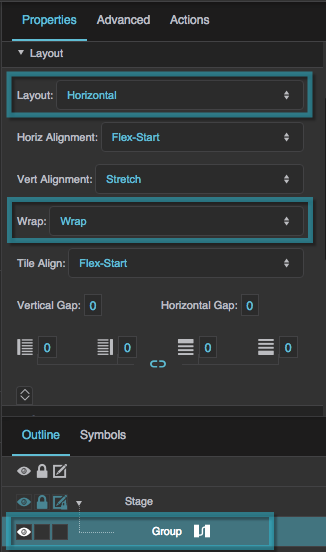
In the Property Inspector, under Repeater, for Symbol, type
symbol.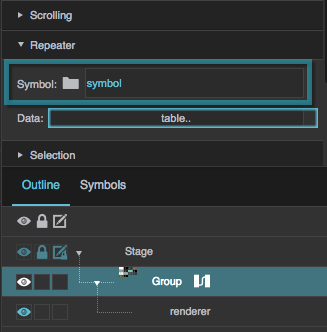
In the Outline, select the "renderer" node that is a child of the group.
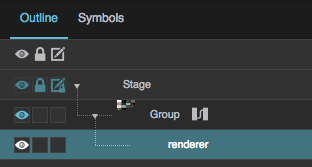
With the "renderer" node selected, click
Dataflow to open the dataflow for the group. Then, select the Table dataflow block, and click the button next to the data property to open the table.
- Drag the v1 column header to the number property, and the v2 column header to the fill property.
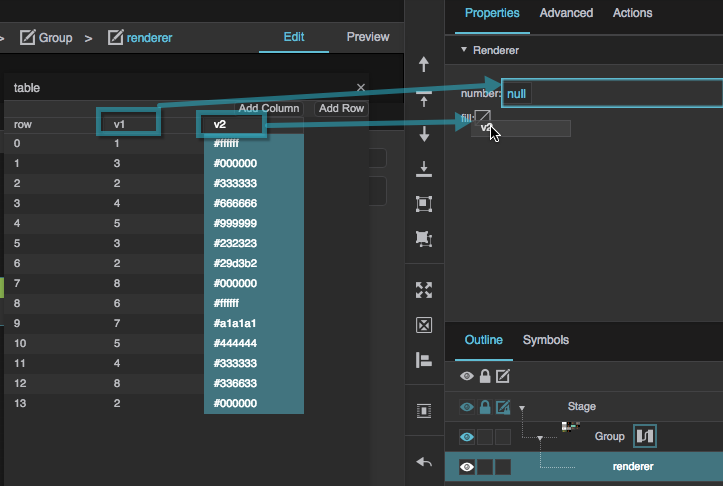
You have created a repeater that shows one instance of the symbol for each row of data in the table.
Repeater Properties
The Repeater section of the Property Inspector appears for groups and view decks. It contains these properties:
| Property | Description |
|---|---|
| Symbol | The symbol that is rendered once for each row of the data table. |
| Data | The table that drives the repeater. |
| Virtual Layout | Under Advanced. Only shown when the group's Layout is Horizontal or Vertical. If true, only the symbol instances that are visible in the scrolling area are created, which improves performance for large tables. |
| Renderer Width | Under Advanced. Shown when Virtual Layout is true. The fixed width of each symbol instance, in pixels (default 150). Shown for Horizontal layout, or when wrapping is enabled. |
| Renderer Height | Under Advanced. Shown when Virtual Layout is true. The fixed height of each symbol instance, in pixels (default 24). Shown for Vertical layout, or when wrapping is enabled. |
These related properties are available in the Advanced Property Inspector and in dataflow:
| Property | Description |
|---|---|
| enableOutput | If true, the repeater generates the output table. |
| output | Read-only. A table with a row column and one column for each non-trigger symbol parameter, containing the current parameter values of each symbol instance. |
| numChildren | Read-only. The number of child components (symbol instances) in the container. |
Configure Repeater Selection
You can control other components in your project based on the user's selection of items inside the repeater. To do this, you can use the group's Selection properties. In this example, you will add a Single Select behavior to a repeater, and create a text component that displays the currently selected value. In these steps, you will use a Table Row Cells block.
Follow these steps after you create a repeater in a group component.
In the same .dg5 file as your repeater:
- Right-click the Stage in the Document window or Outline, and select Insert > Components > Text.
In the Outline, next to the group component that contains the repeater, click the
Dataflow icon.

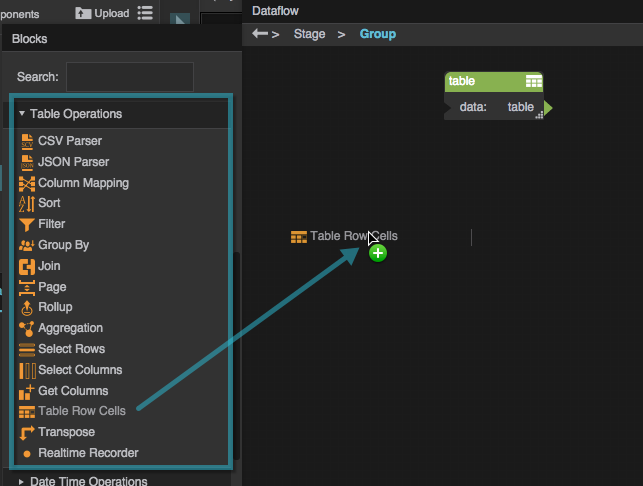
In the Blocks Palette, expand Table Operations, and drag a Table Row Cells block to the dataflow.
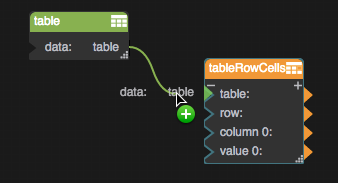
Bind the table that is driving your repeater to the input property of the Table Row Cells block.
- With the group selected in the Outline, expand the Selection properties, and set the Selection Behavior property to
 Single Select.
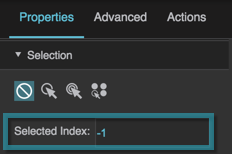
Bind the Selected Index property to the Table Row Cells block's row property.
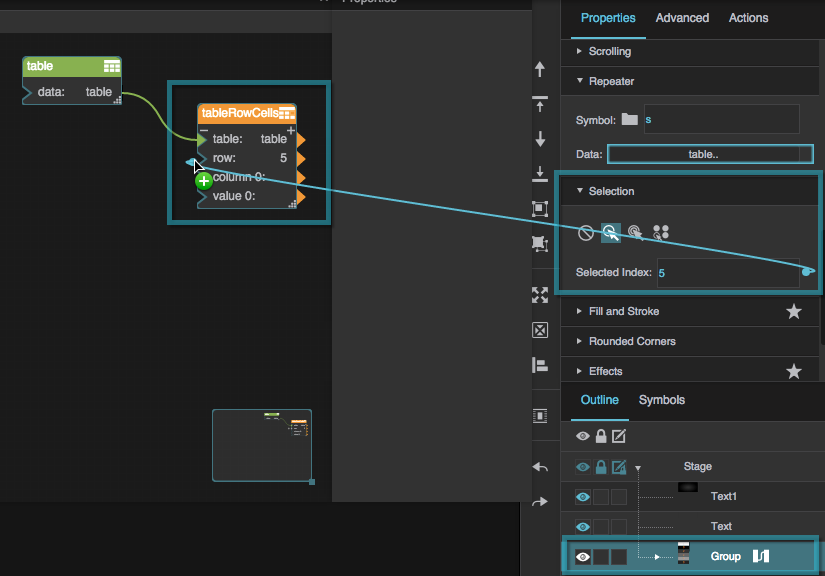
For the Table Row Cell block's column 0 property, enter the name of one of the columns from the table that is driving the repeater.
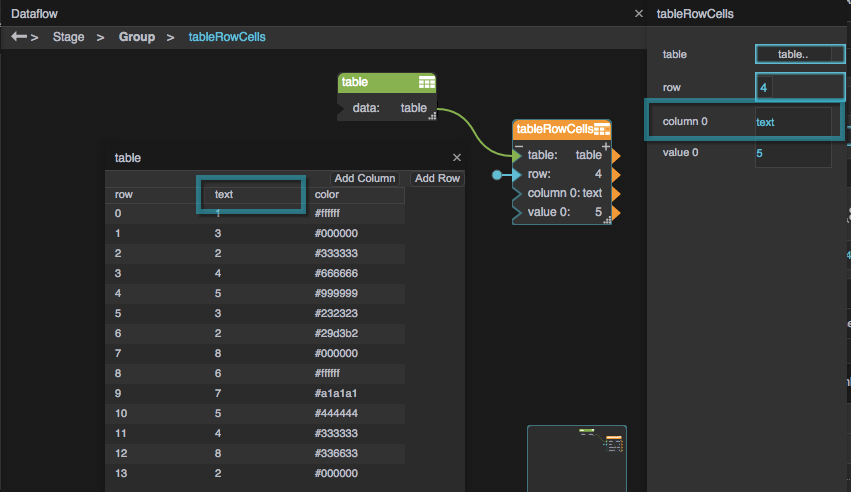
If a repeater item is selected, the Table Row Cell block's value 0 property automatically updates when you specify a column 0.
- Without closing the dataflow, select the text component in the Outline.
Bind the Table Row Cell block's value 0 property to the text component's Text property.
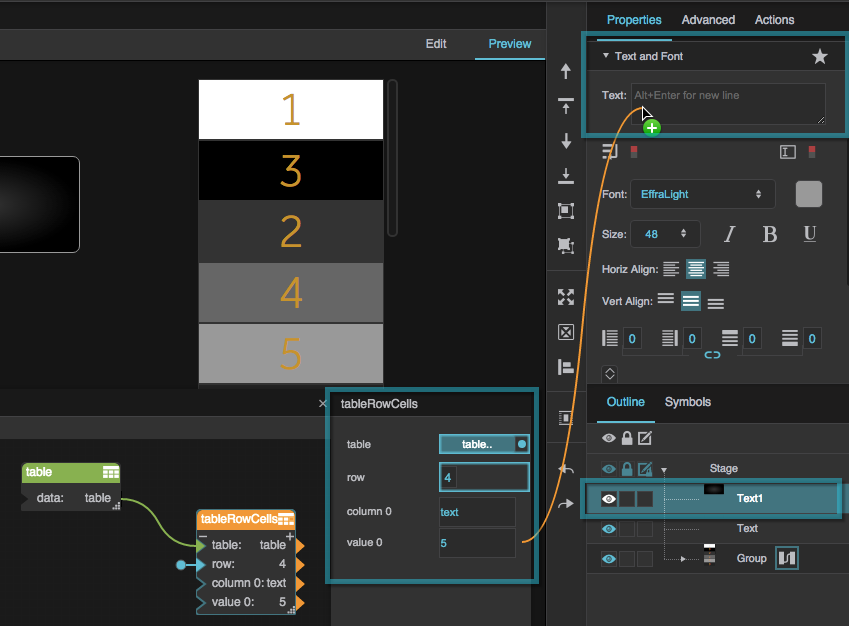
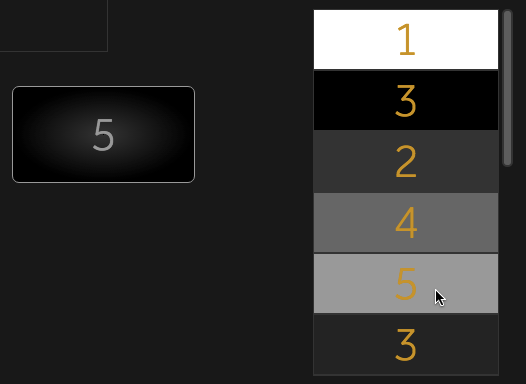
Change to Preview mode, and test your repeater by clicking. The text component's contents should update depending on the items you click inside the group.

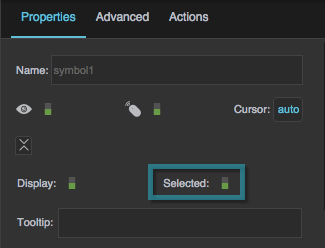
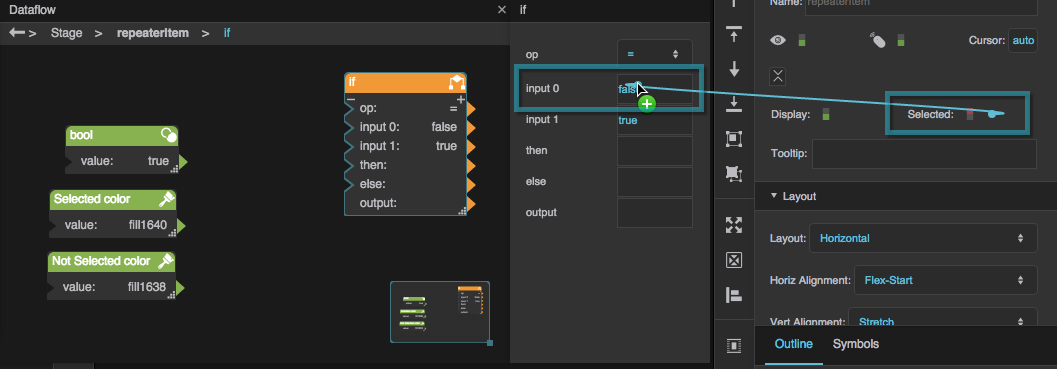
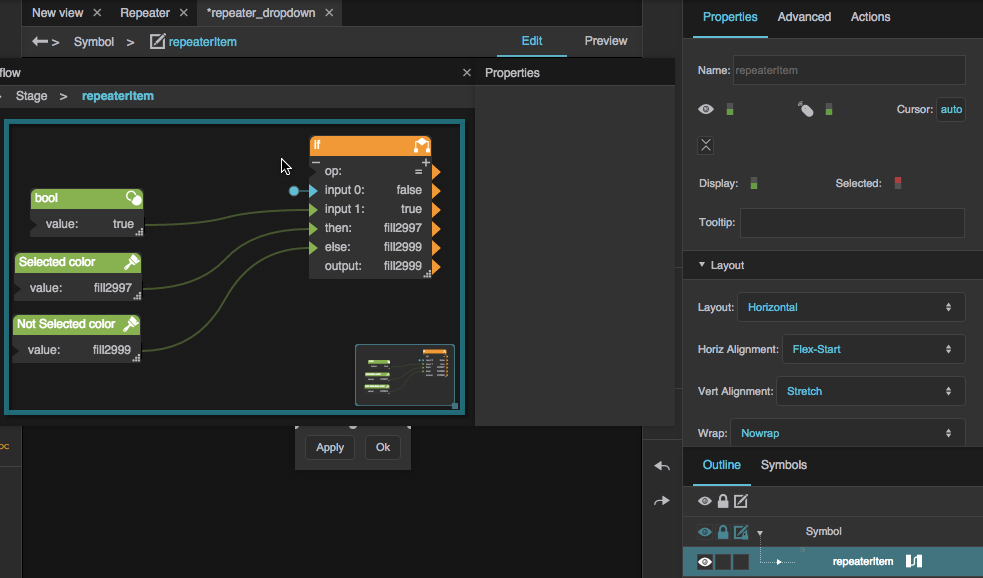
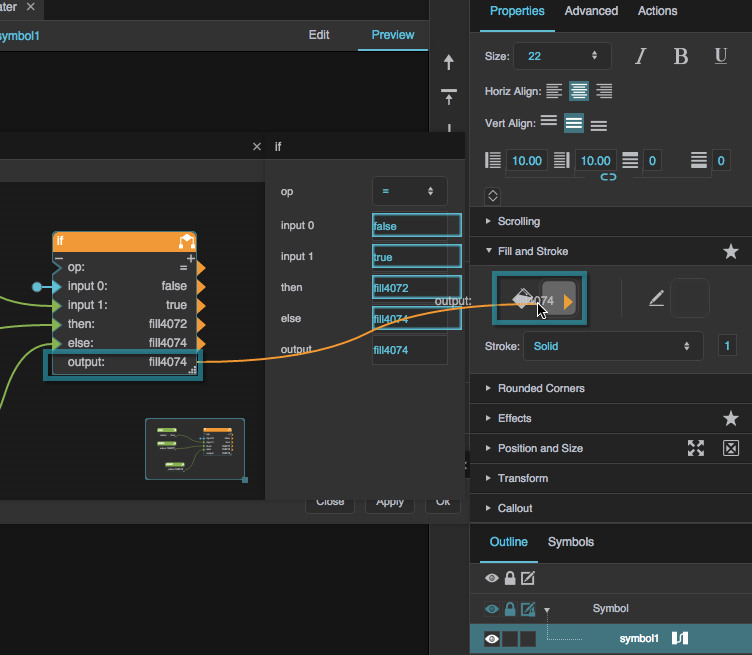
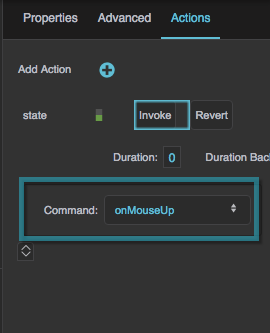
 Add Action, and select Set State.

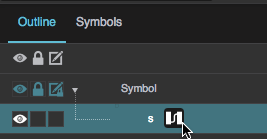
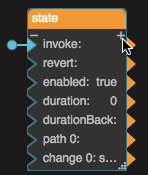
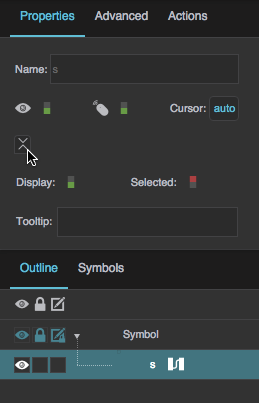
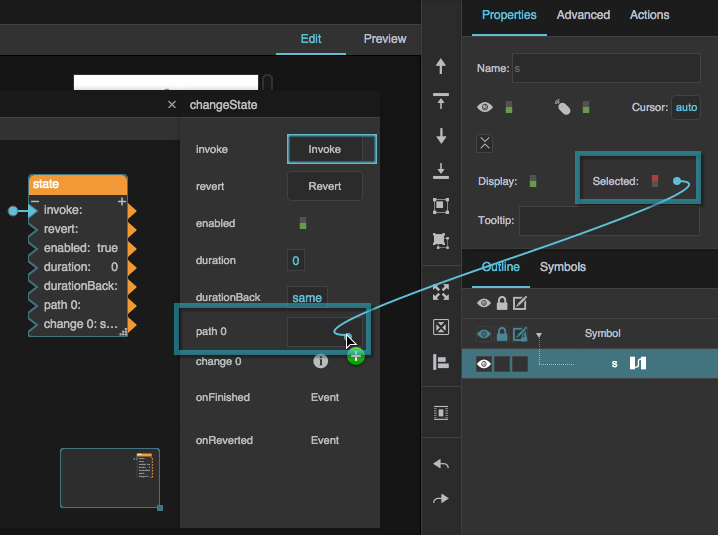
 icon, and set Selected to TRUE.